Editors-in-chief have access to Advanced Settings tab. In this area, choose what design content you want to make available in the editor (layouts, fonts, backgrounds, elements), and choose to import sections/pages and photo folders from previous years' books (if your license was renewed under the same account).
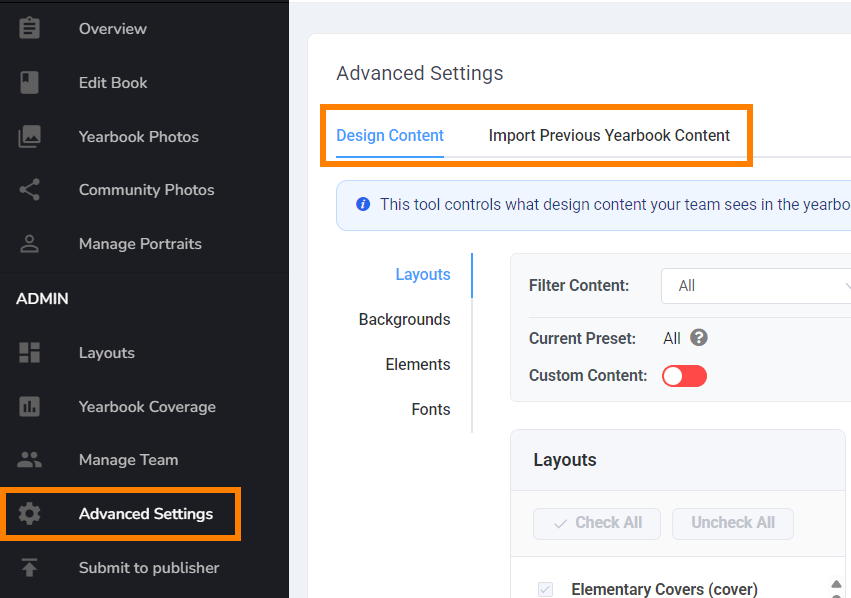
Design content filtering
| Under the Admin menu, click Advanced Settings. Choose the Design Content tab. Choose Layouts, Backgrounds, Elements or Fonts tab to review your filtering options. | 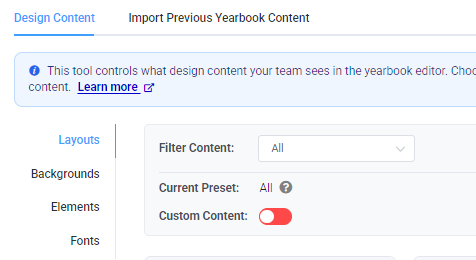 |
| Layouts, backgrounds and elements have been tagged to grade-specific levels. You can limit access to content based on the grade level. Click on the Filter Content dropdown to choose your school type: pre-school, elementary, middle or high school. | 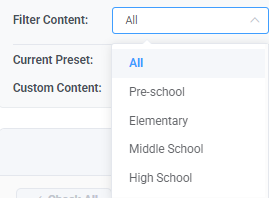 |
| Layouts, backgrounds, elements and fonts may be selectively turned on/off in, filtering the content in the editor. Turn on the Custom Content toggle to make specific selection. | 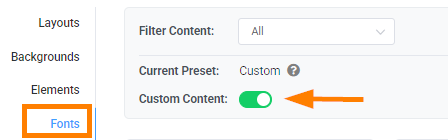 |
| Click on an item in the list to see a preview of the content (collection previews or font sample). Turn the checkmark off to hide content, leave the checkmark on to make the content available in the editor. Use the Check All or Uncheck All buttons at the top of the list for a quick selection. | 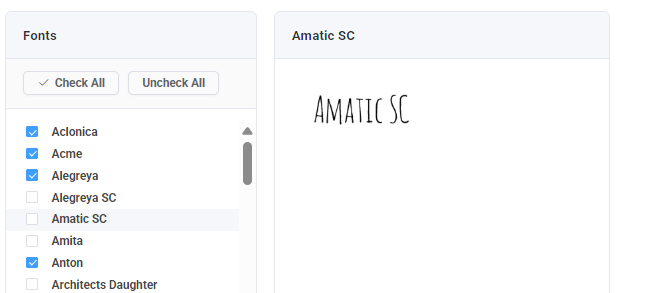 |
Importing previous yearbook's content to your new book
| If your Memento yearbook was renewed under the same account, you will have access to your previous year(s) books content. Import all or selected parts of your previous book ladder and yearbook image folders to your new book. Under the Admin menu, click Advanced Settings. Click Import Content to begin. | 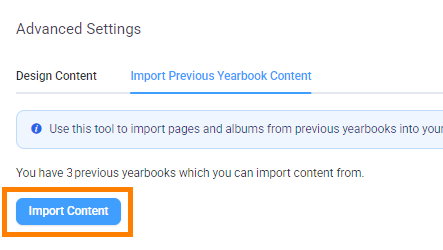 |
| Choose a previous book, then click Next. | 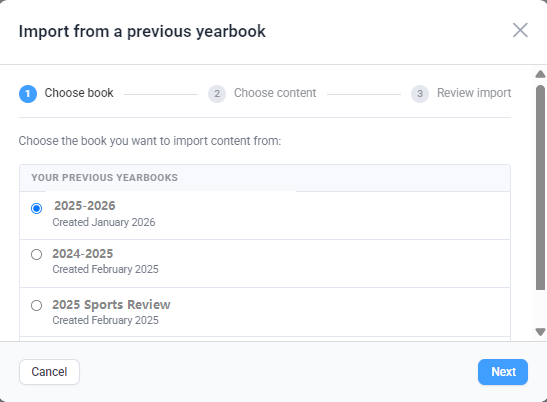 |
| Scroll down to review the previous book's sections. Select all, a few or a single section to import to your current ladder. Note that when imported, the section and all candid pages within it will regenerate at the bottom of your current book's ladder. You can move the imported section on your ladder and manage the pages within them as needed. Note that the photos and text on the imported pages will appear as empty placeholder frames to avoid using previous year's images and captions. Important: scroll to the bottom of the section list to choose if backgrounds and elements on the imported pages (added from Memento's collection) will be preserved on the page.  | 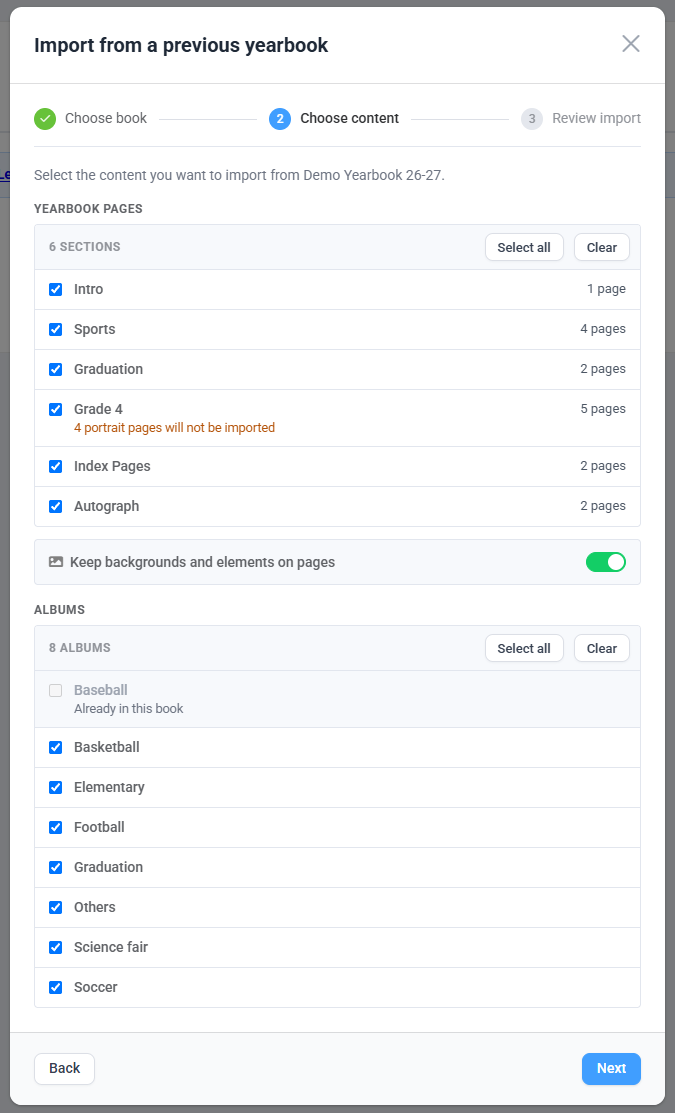 |
| Continue to scroll to down to access a list of photo albums from the previous book. Select all, a few, or none of these. The albums will be imported without photos into your current book so you don't need to recreate folders for the current year. | 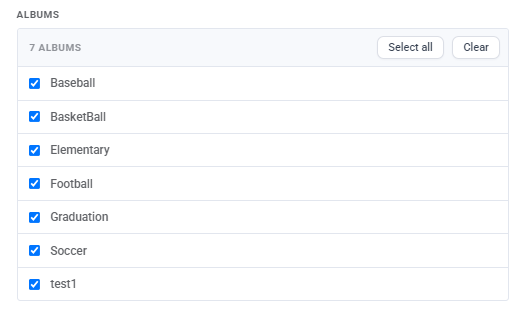 |
Was this article helpful?
That’s Great!
Thank you for your feedback
Sorry! We couldn't be helpful
Thank you for your feedback
Feedback sent
We appreciate your effort and will try to fix the article