The page editor includes an easy-to-use color picker tool, offering various options for selecting or entering colors manually when you have a specific choice in mind. All items that may be recolored will include a color chip, including the border, fill, shadow and text editors.
To open the color picker, click on the color swatch icon, which can be found in numerous areas of the editor.
Image border, shadow, shape fill | Text color, background and outline  |
 |
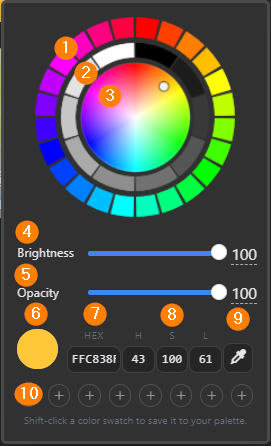
| Clicking on the swatch will open the color picker. 1) Preset color swatches 2) Preset greyscale swatches 3) Custom color selector 4) Brightness: lighten/darken the color selection 5) Opacity slider: make the color more/less translucent 6) Active color: applied to the editor area currently selected. 7) Hex code: type in your choice of web-based color codes 8) HSL color selection: type in your choice of hue, saturation and lightness values 9) Eyedropper selection: click to open the selector, then to choose a color from your design; click again to choose your color. 10) Custom swatches: choose a color, hold the Shift key, then click an empty swatch to save the color |
Was this article helpful?
That’s Great!
Thank you for your feedback
Sorry! We couldn't be helpful
Thank you for your feedback
Feedback sent
We appreciate your effort and will try to fix the article