The page editor is where you will design your layouts, using a range of tools and features: templates, candid images, text frames, shapes, elements, and backgrounds.
| This knowledge base includes design guides to help your team make choices for covers and general yearbook theming. Learn about the following before getting to work in the editor: |
| 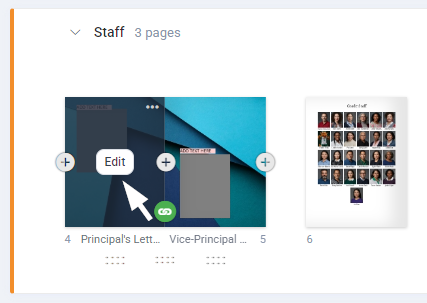 |
Note: Team members with a role of Staffer may only open pages assigned to them in the editor. You can choose to highlight page owner status in the book manager tab to see what pages are available to edit under your login. Pages may not be available for editing if they have been submitted for review or approved by an Editor-in-Chief.
Important: Memento recommends using a three-button mouse for best results. Laptop users with tracker pads may find this feature hard to use. We strongly recommend using a mouse for best results in the editor.
Editor Overview
When the editor first launches, the canvas is featured prominently surrounded by rulers. Tools appear over the top of the canvas and a pane to access content and settings appears to the left.
| A- Content & settings pane | B- Duplicate, copy and undo/redo | C- Add text, shape and image frame |
| D- Canvas pan & zoom tools | E- Save status indicator, help icon and close editor button |
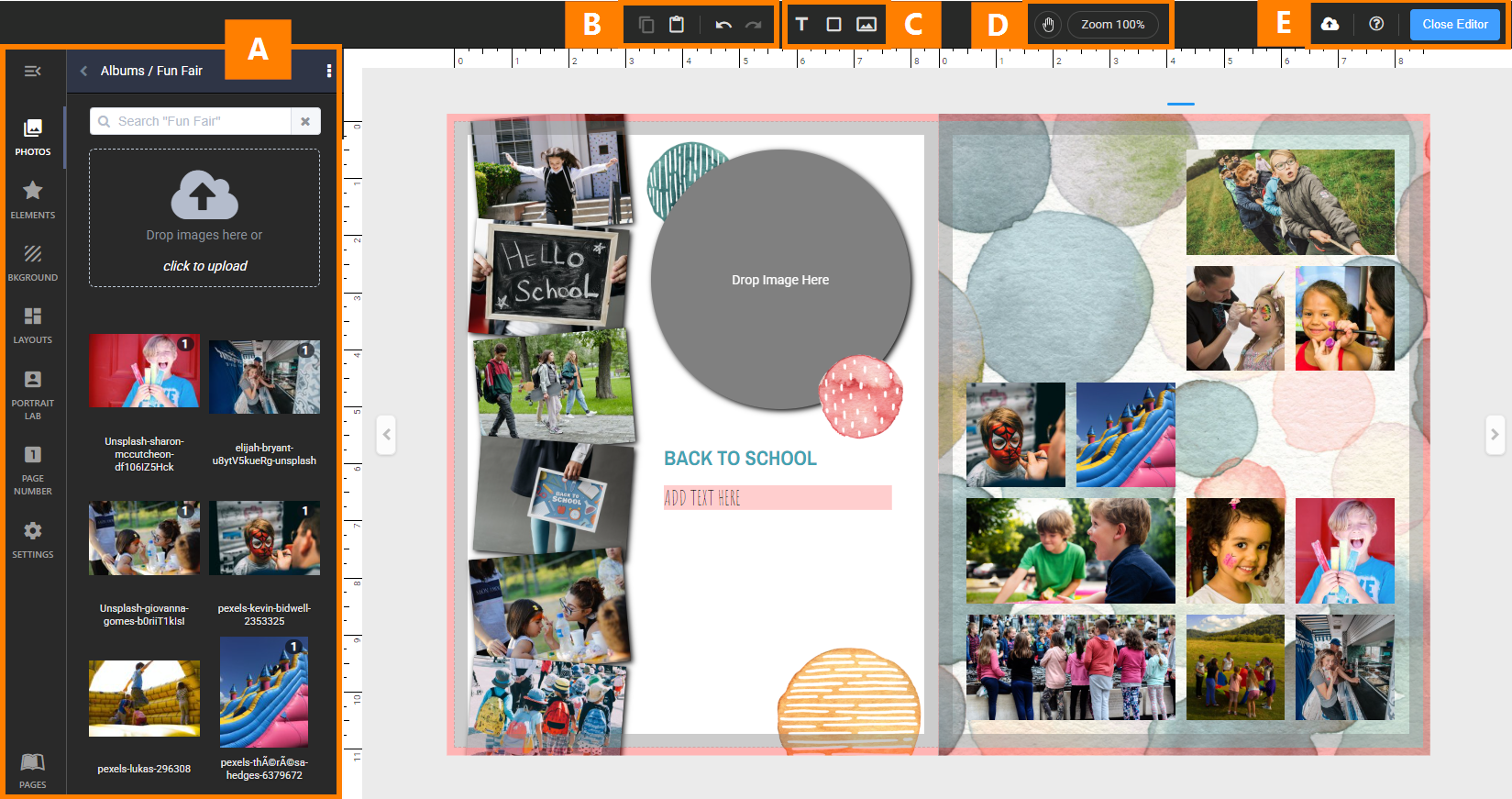
Memento saves work-in-progress automatically so quickly you won't even notice anything is happening. When you've finished editing, simply close the editor to return to the book manager. In the rare instance that there is any network or server instability, the Save icon (E) will display an orange delay warning or a red failure warning.
Navigating through your pages
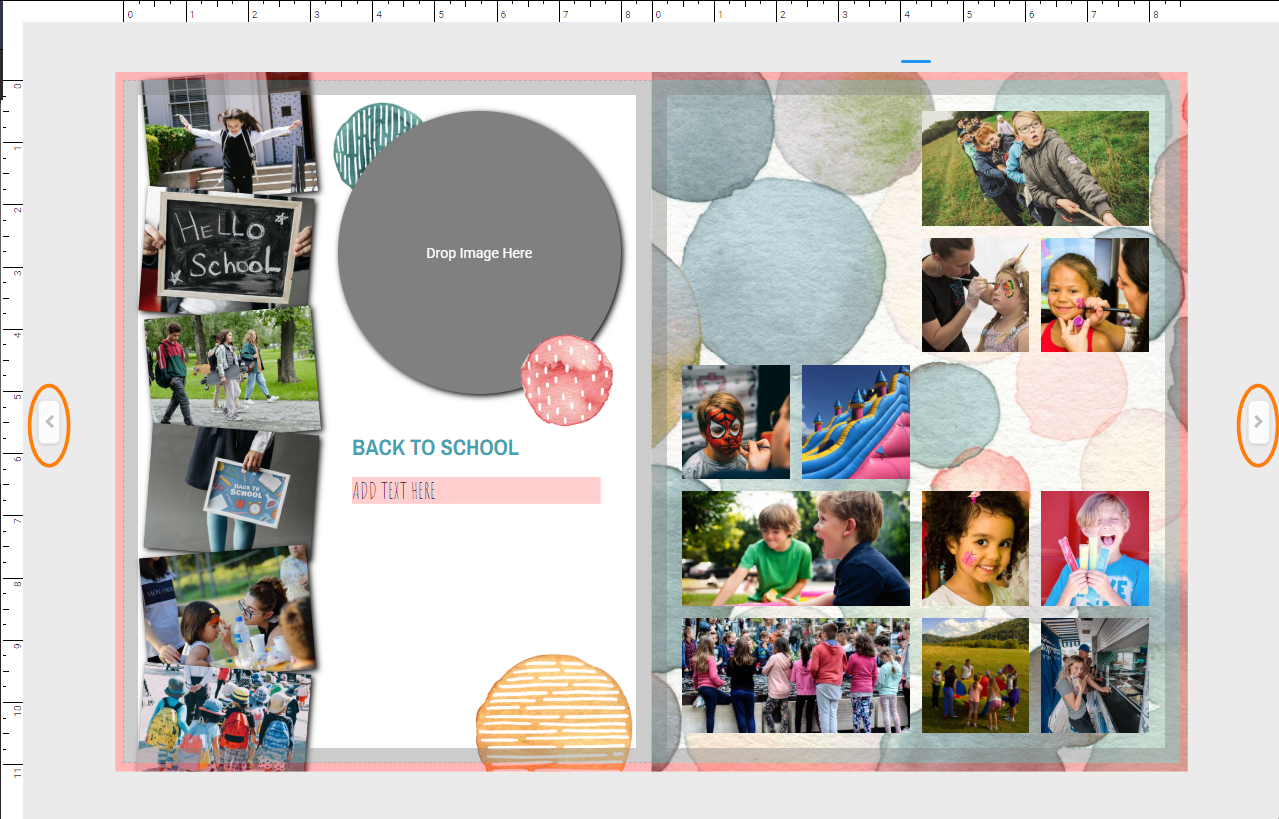
To move to the previous or next page in the book, click on the side arrows next to the canvas.
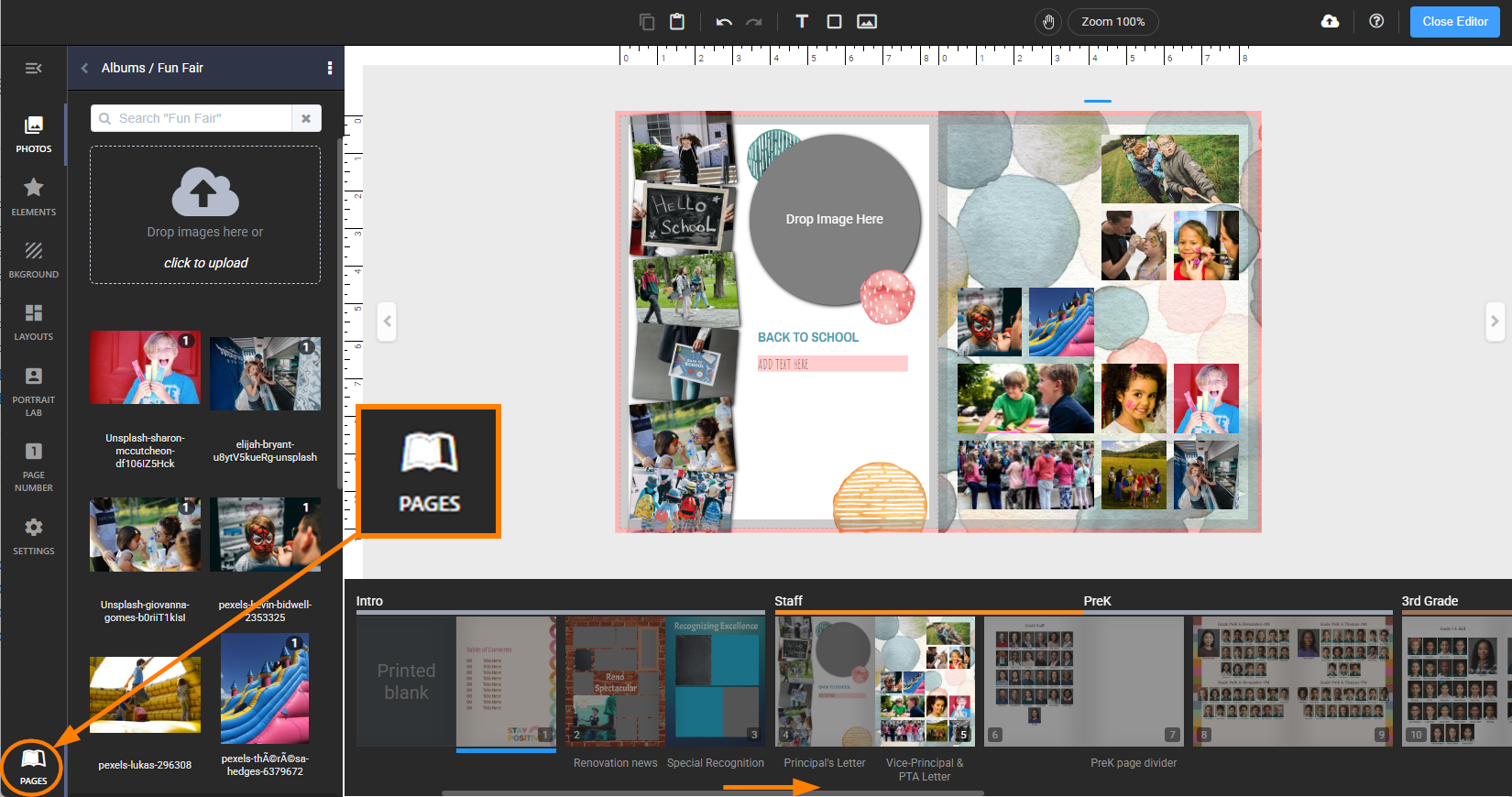
To navigate to a different area of your book, click on the Pages tab in the bottom left corner. A scrollable preview of your pages sorted into sections appears at the bottom of the page. The currently selected page will be highlighted.
Accessing images, layouts and settings
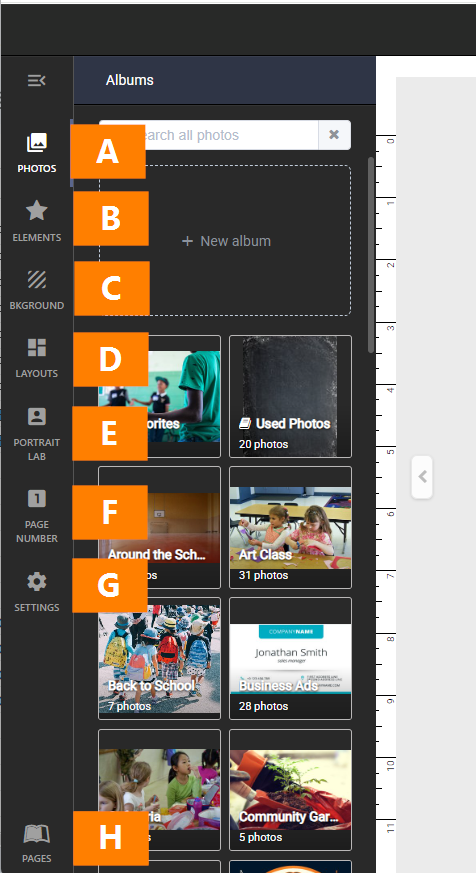 | The left-side pane provides access to content to add to your pages and advanced settings applied to pages in your book. A- Photos: Your image collection is presented in album folders. B- Elements: Access decorations and word art provided by Memento (and possibly your publisher). C- Backgrounds: Access backgrounds provided by Memento (and possibly your publisher) to add to your page, the entire spread or design elements on your page.. D- Layouts: Find premade page designs to apply to your candid pages. E- Portrait Lab: Once portraits have been flown into the book, customize the portrait layouts with presets and advanced options.. F- Page Number: Turn on and position page numbering. G- Settings: Customize arrow-key nudge behavior and grid settings. H- Pages: Toggle a preview of all the pages in the book, and click on any page to open it in the editor (see above) |
Adding content to your page
Photos, elements and backgrounds may be dragged from the left-side pane then dropped to your canvas -- these will appear inside an image frame. Empty image frames, shapes and text frames may be added by clicking on the icon sets over the canvas. To add a photo or background to your fill your canvas, click down on it in the left-side pane or drag-and-drop it in the grey area around the canvas, then choose to apply it to the left or right side page or the entire double-page spread.
Note that the left-side pane is dockable, allowing you to keep the pane opened all the time or only open on demand. Click on the icon at the top of the pane to dock or undock it.
Editing tools
Memento keeps your workspace clean by providing on-demand editing tools. Simply select one or more frames on your canvas (or double-click the canvas) to access the pop-up tool bar that only show relevant controls.
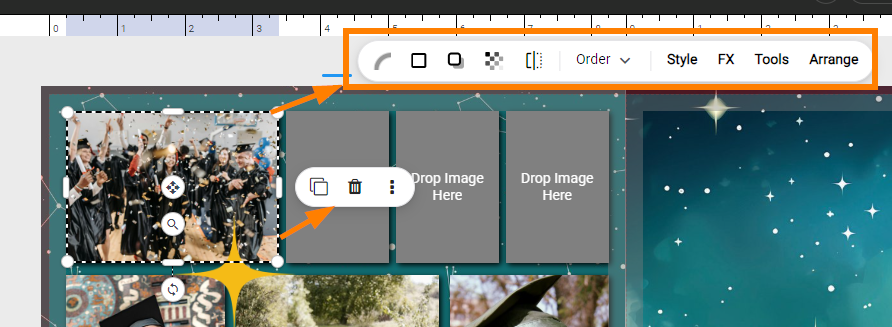
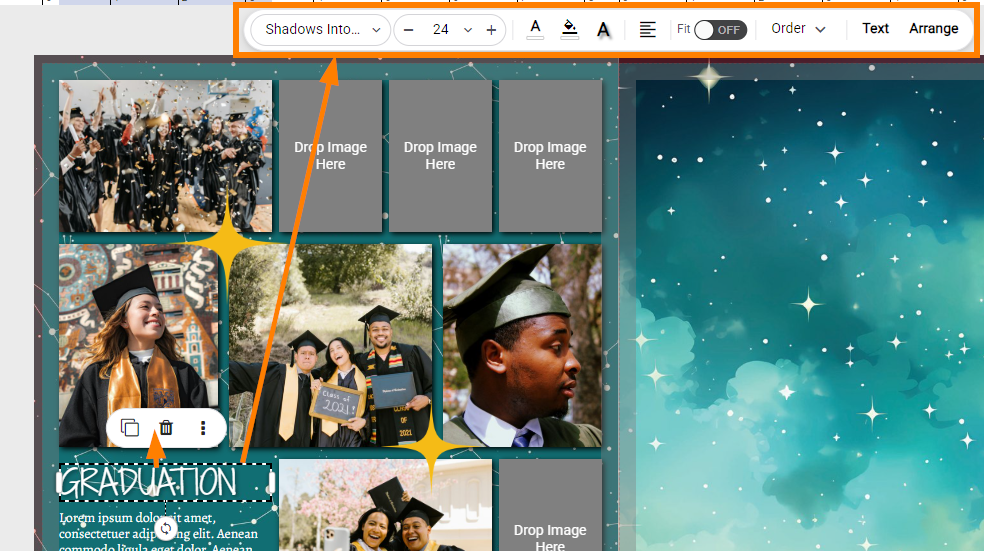
Advanced features, displayed at the end of the toolbar, pop open a right-side pane. This pane may be docked via the push pin icon so it remains opened, reframing the canvas.
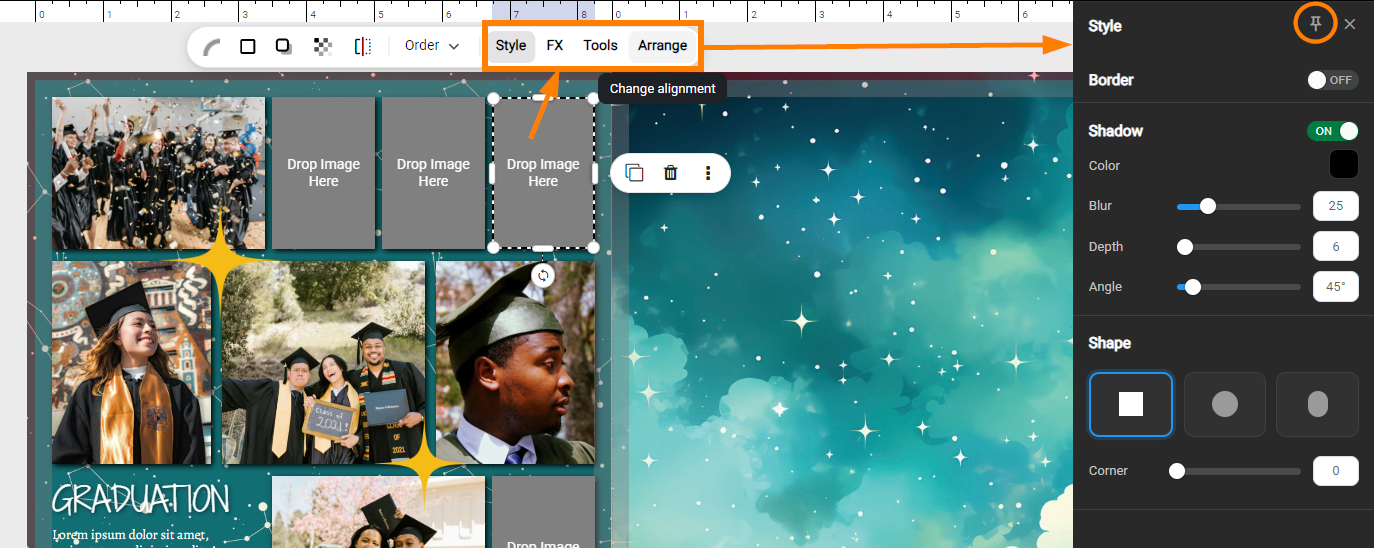
Details on image, shape and text frame customization are reviewed in detail in other articles in this knowledge base.
Working with double-page spreads
The first and last pages of your book are, by default, a single page. All other pages in the book are presented as right- and left-facing pages. When a common background is applied to both pages and/pr frames cross the gutter, a notification appears at the top of the canvas to indicate the pages are linked as a spread.
The editor displays a double page spread notification in the top right of the screen, and the pages preview bar shows a linked icon.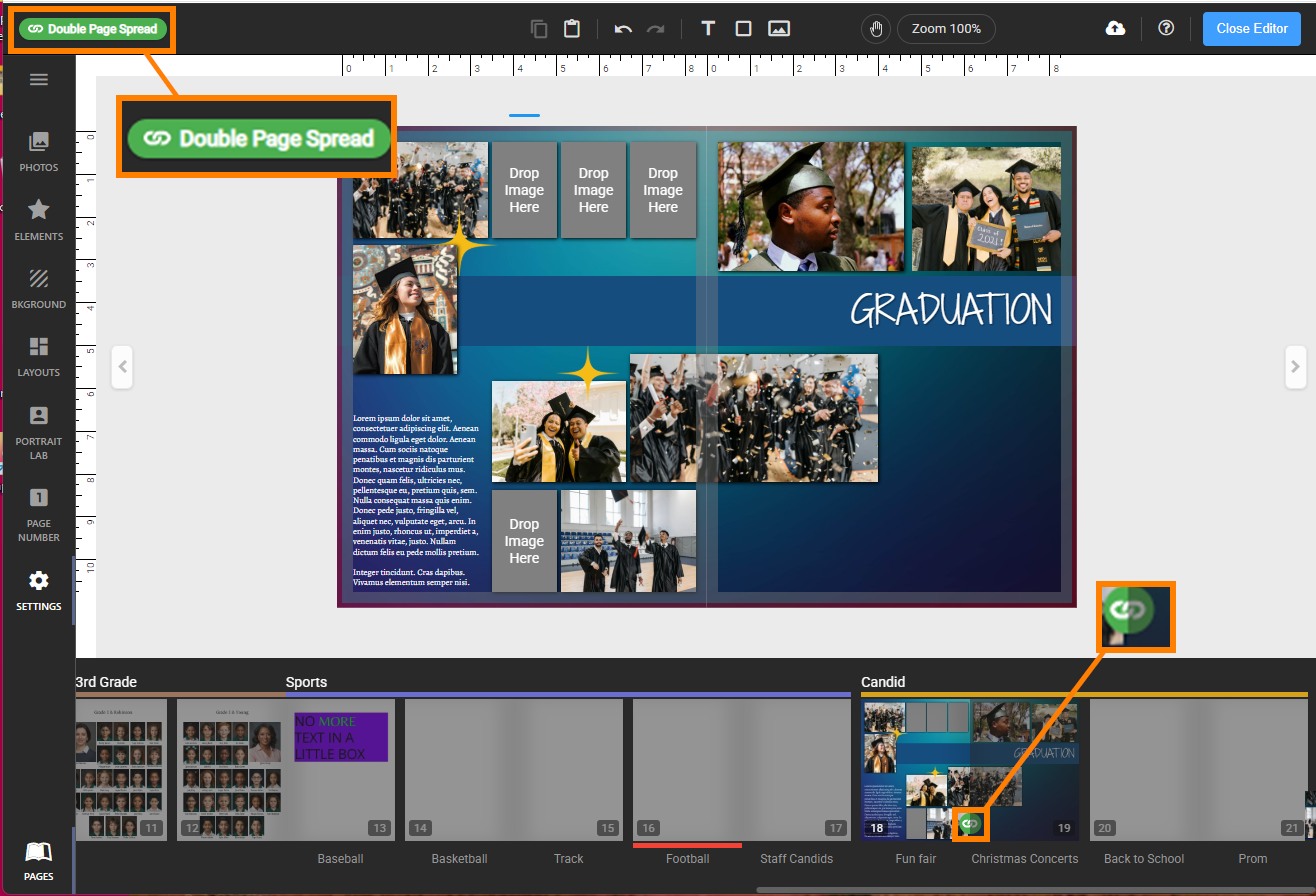
If pages have been moved on the ladder resulting in a double-page spread becoming broken apart then a warning will appear at the top of the page. Click the warning for more information, to learn how to resolve the issue or unlink the pages.
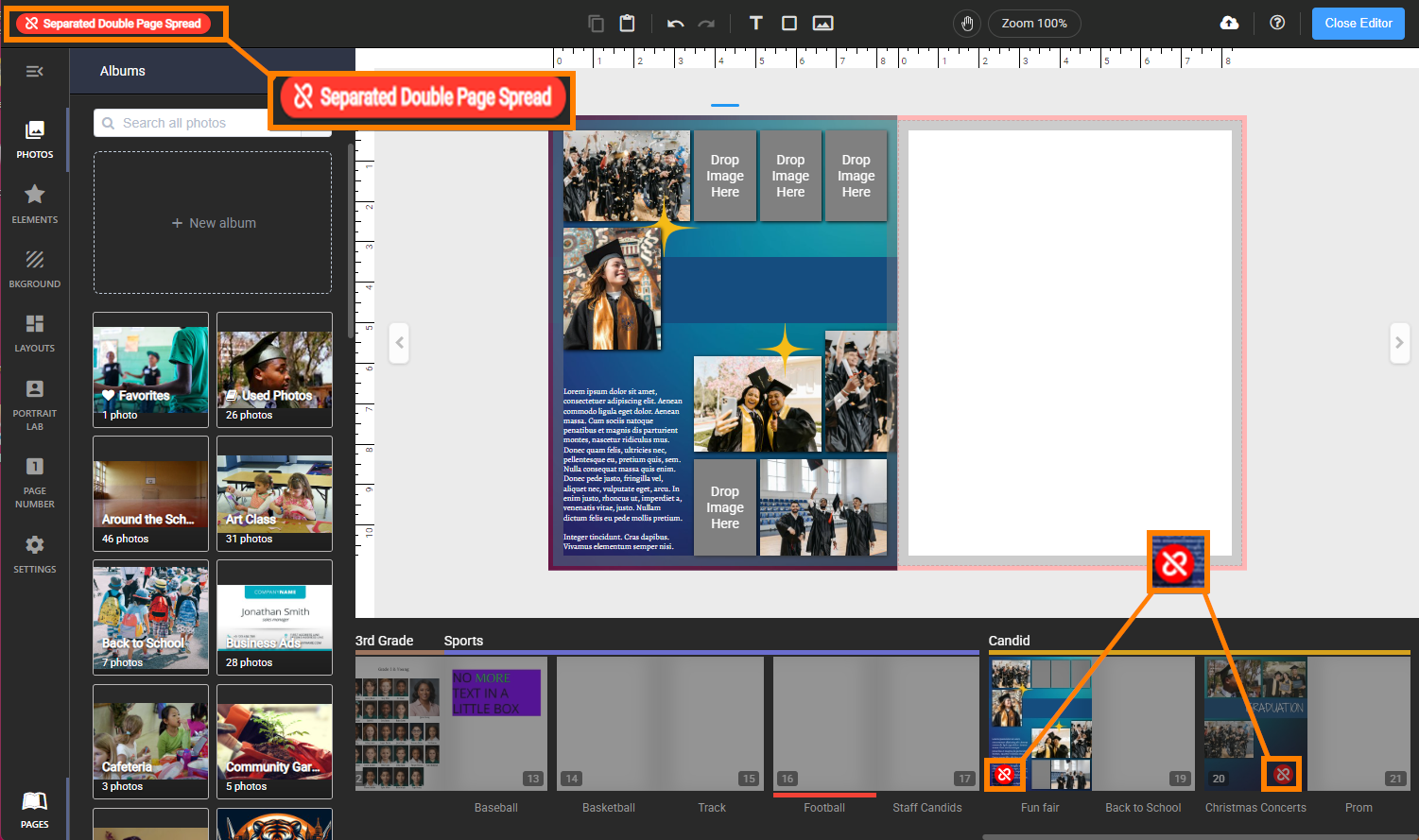
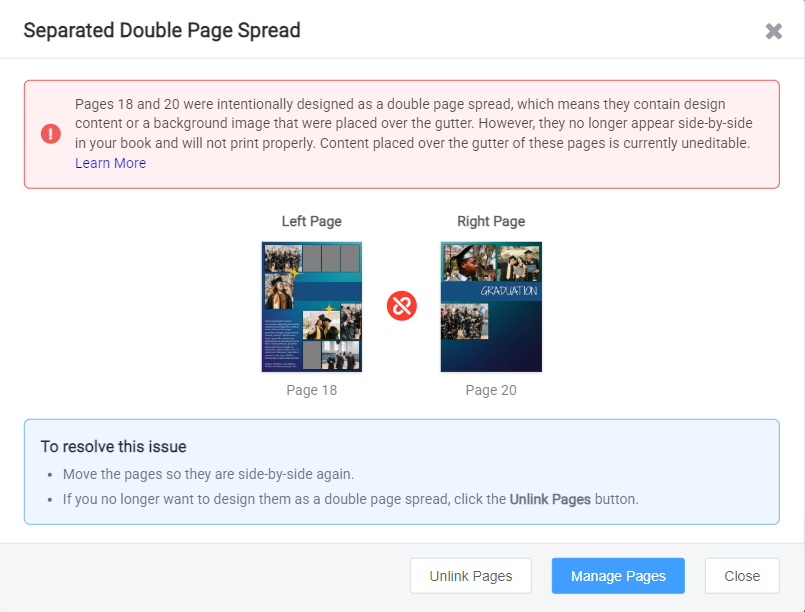
Learn more about double-page spread management on your ladder.
Zooming & Panning the Canvas
By default, the editor displays both the left and right side pages. For a more detailed view, click on the Zoom button on the toolbar. Choose a preset zoom level, or use the slider to set a custom zoom. Click on the Hand icon to activate panning, then click down on the canvas to move it around.
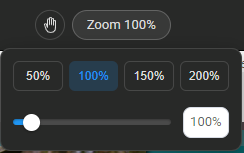 |
Double-click the zoom slider to reset the canvas view to 100%, or move to the next page.
Interior Page Guidelines
Interior page dimensions (length, width) are automatically preset based on the book type assigned by your studio. Pages are surrounded by guidelines in the editor. These lines are used to assist you in placing your page content to achieve best possible results when your book is printed.
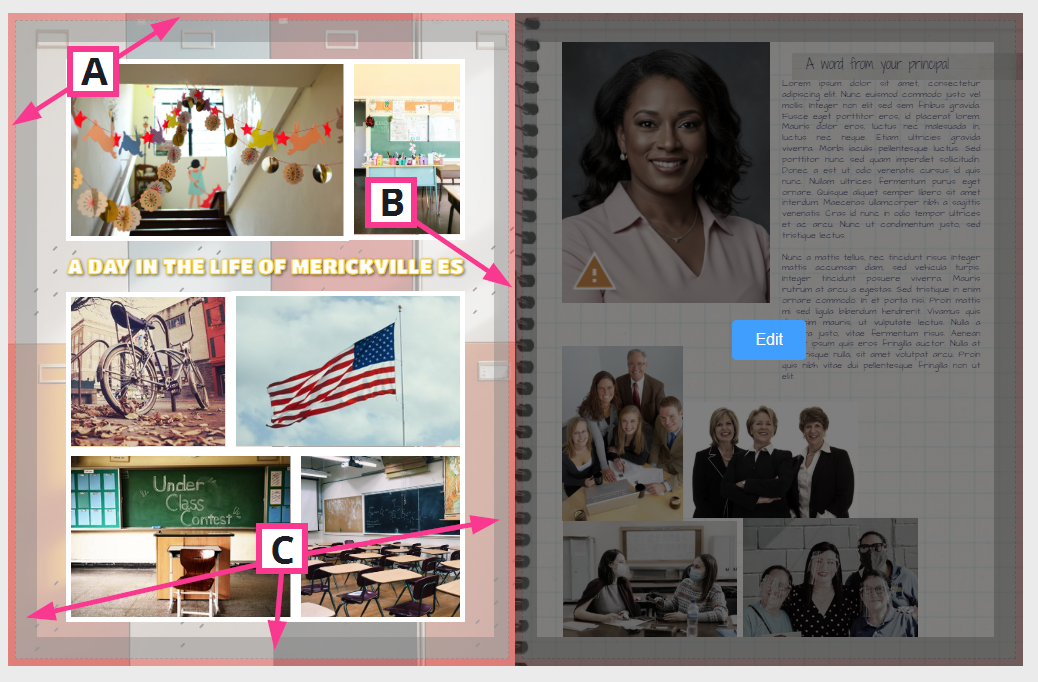
A- Red trim guidelines indicate the area of the canvas that will be cut off after the book is printed and bound. This is called the bleed area. Be sure that all backgrounds, banners or images that deliberately spill off the page edge extend over this area to the edge of the page. This ensures a clean finish to your book.
B- The gutter is the area between facing pages. Content too close to the gutter may be caught in the folds of the pages. Keep this in mind when editing across a double-page spread.
C- Gray shading defines the page margins, also known as the safe margins. Keep all text and people's faces out of this area to ensure that nothing important gets too close to your page edges.
Cover Guidelines
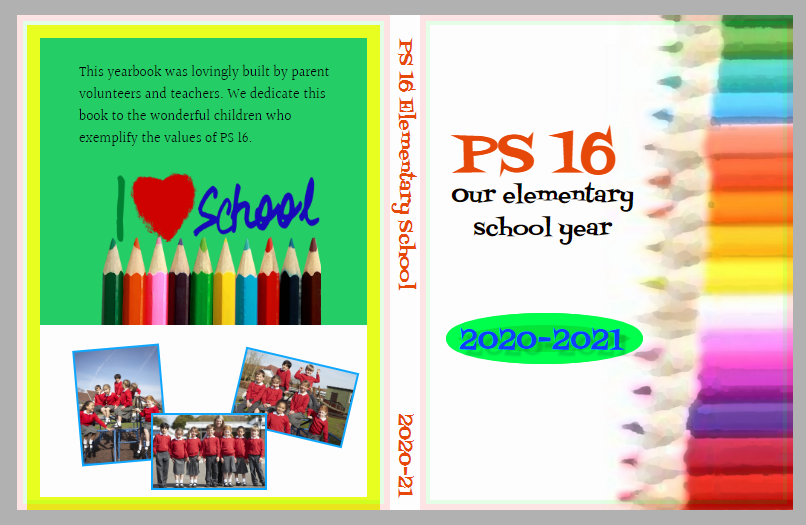
Covers dimensions are also preset by the book type assigned by your studio. Your book may be set up with a hard cover, a perfect bound soft cover and/or a saddle stitch cover, depending on the options offered by your studio..
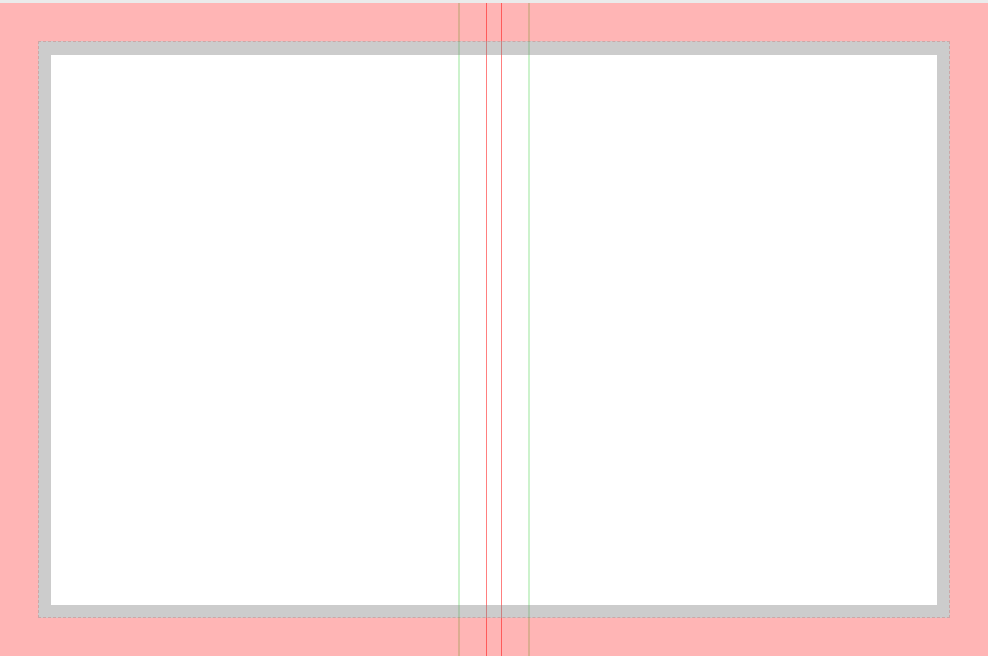
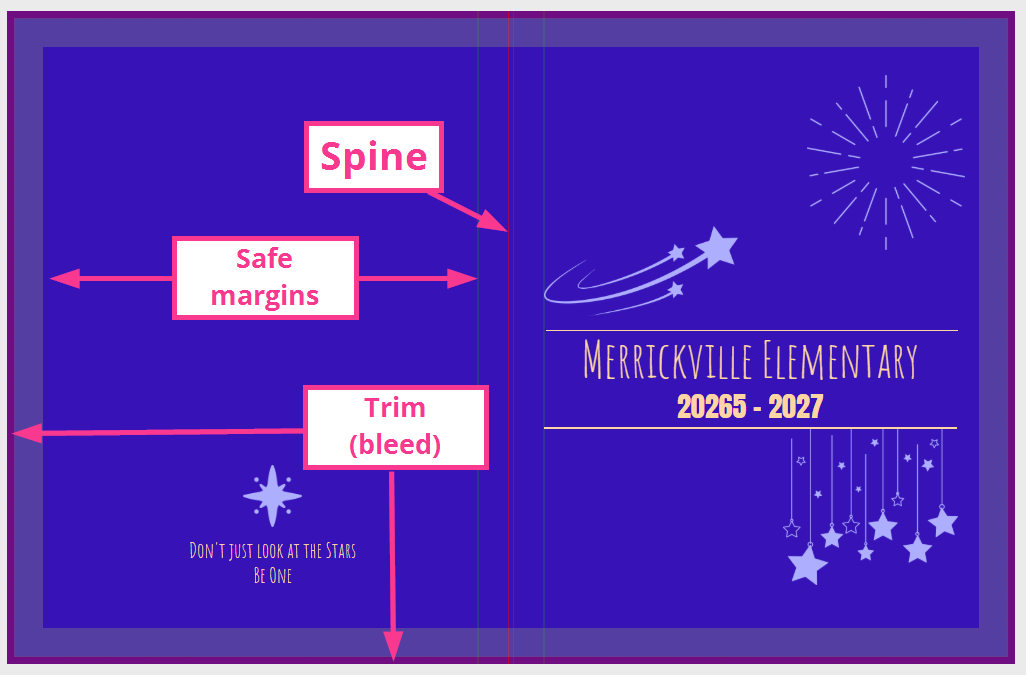
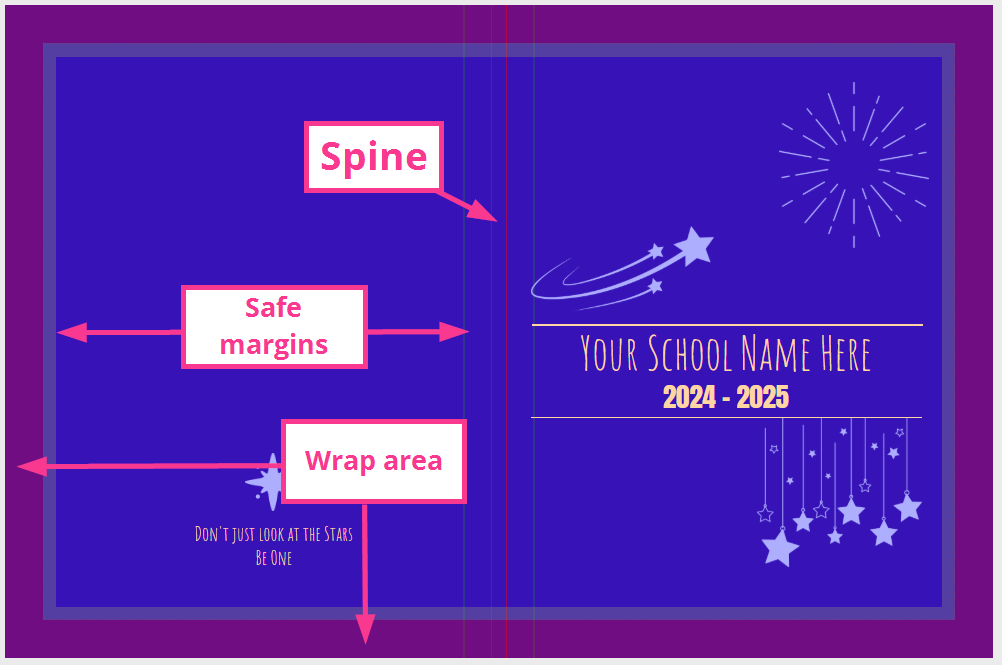
A red trim area surrounds the cover page. Soft cover books will show a thin red trim line, since these are simply trimmed like an interior page. Hard cover books may show a much wider red area, representing the part of the cover that wraps behind the hardback board of the cover. Be sure to extend backgrounds and banners into this area to achieve a clean continuous look to your book.
Grey safe margins are displayed around the edge of the cover page. An additional green margin flanks the spine guidelines. Keep all text, photos of faces and important feature images within the safe margins.
Red spine guidelines are in the middle of the cover page. The more pages in your book, the larger the spine. Should you wish to add spine text, keep it small and positioned within the middle of the spine guidelines. Ask your publisher if there are any limitations for spine text (e.g. not available on saddle stitch books or under a particular page count
|
Was this article helpful?
That’s Great!
Thank you for your feedback
Sorry! We couldn't be helpful
Thank you for your feedback
Feedback sent
We appreciate your effort and will try to fix the article