Portrait Page WorkflowStep 1: Import your portraits into the portrait manager and review the data to make corrections and additions.Step 2: Flow one or more portrait groups onto your ladder. Step 3: In the editor, apply a layout preset to customize the grid. Step 5: Generate a pdf proof to share with your staff to make sure that everyone has made it into the book. |
Editor and Editors-in-Chief may flow and configure portrait pages. Staffers may only add backgrounds, candid photos and elements to portrait pages, providing they are assigned to all portrait pages within the section.
It is strongly recommend to create separate sections for your portrait flow by group. Grid settings apply to all groups within a single sections, so if special formatting is required, keep your portrait groups separated.
- Create one section for staff portraits.
- Create separate sections for each grade or any class that needs special formatting.
- Optionally create a separate section for senior class portraits.
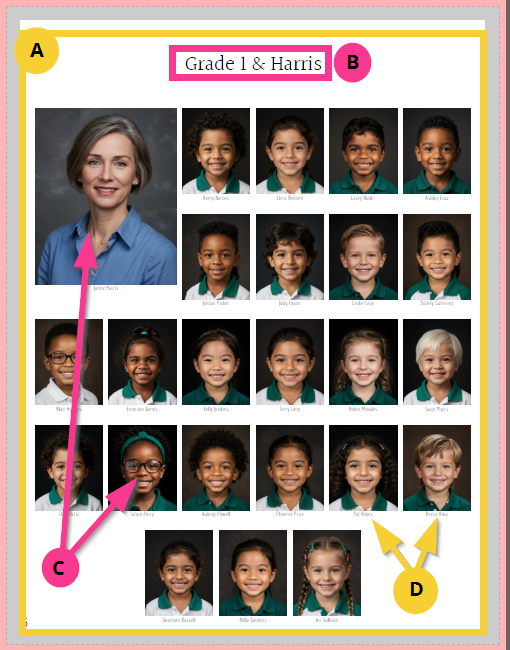 | Anatomy of a portrait pageA. Portrait Grid – the arrangement of all elements on the page. Grid style can include label placement (under image, side), featured images, and many other design options (alternating rows/columns, arcs, jumbled angle, etc.) B. Portrait page title – can contain auto-generated text or custom text, and may be styled like any other text frame (font, size, color) C. Portrait image frames– added to the grid based on the groups selected in the portrait wizard. Borders, shape, shadow may all be customized. D. Name labels – displays the name, salutation or job role of a person and are placed below the portraits or to the side of the grid. Senior class can also include quotes and memories. |
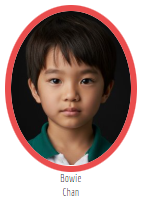
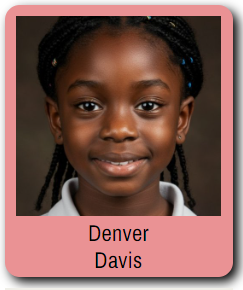
A portrait template refers the portrait image + label group, plus other elements applied per person on the grid\. Consult the Portrait Template Look-Book article to review the many creative options available in Memento.
  |  |   |
Portrait Page FAQ
Can I place teachers and assistant teachers at the front of their class?
Yes! In the portrait manager, ensure the teachers are assigned to the same grade & teacher/homeroom group as their students. To get them to the front of the class, assign them the role of teacher or assistant teacher, or use an image frame customization option directly in the editor to make them into a featured frame.Can two or more groups be placed on the same page?
Yes! The portrait page editor lets you turn off breaks between groups. Customize your rows/columns to condense the number of people per page, and use other tools like knockout and page title height to complete your design.Can teachers appear on their classroom page and the staff page?
Yes! In the portrait manager, duplicate their records. One copy of the portrait will be assigned to the staff's grade, and the other copy to their students' grade and teacher/homeroom. Use assign role to bring the teacher to the top their class grid, and optionally configure the staff page into departmental groups.Can I customize the page title text on a portrait group?
Yes! Just click on the portrait page title, scope the section to Title on the toolbar over the frame, and start typing in the text box. You can customize each portrait pages title in a multi-page flow differently.Can change row/column settings to be different on separate pages within a section?
No, all portraits within a single section will have the same grid settings. For this reason we recommend creating separate sections for staff, each grade, and the senior class. Note that you can copy portrait layouts between sections if there is consistency between certain grade levels.How can I make a special portrait page for my senior/graduating class?
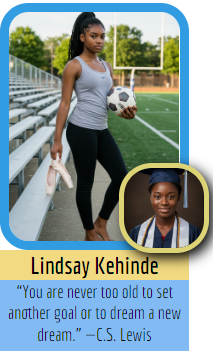
Yes! Memento uniquely provides layout options to make truly custom pages for your senior class. Include two images (portrait + graduation or baby picture) and text fields for quotes or memories.If a person appears with the wrong group, has left the school, or has a typo in their name, can I make corrections to the portrait grid to fix the issue?
No, all changes to the information linked to portraits is handled in the portrait manager. Update the person's portrait in the portrait manager where you can edit their name, reassign them to a new group, or exclude/delete them.How do I provide a proof copy of my portraits to staff so they can make sure that their classroom groups are correct?
Generate pdf proofs of individual pages, sections or the entire book. These can be sent to your staff for verification.
Was this article helpful?
That’s Great!
Thank you for your feedback
Sorry! We couldn't be helpful
Thank you for your feedback
Feedback sent
We appreciate your effort and will try to fix the article