Portrait flow tips
|
Adding a portrait flow to your bookA- Create a section for your portrait flow.
Recommendation: create one section per grade, plus a section for staff and the senior class. Do not add pages to sections for portraits. They will auto-generate pages when you add a flow to the section. | 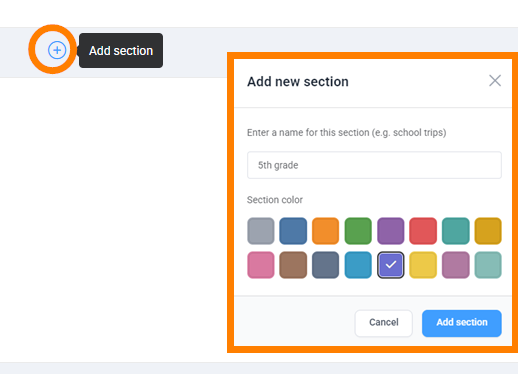 |
B- Add a portrait flow to the section.
|  |
C- Add one or more portrait groups to the section.
|
|
 To flow a grade by classroom groups, choose a Grade+Teacher or Grade+Homeroom group, or just the Teacher / Homeroom group.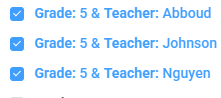
D- Change the order of the groups (Optional)
If desired, reorder the groups. Click down and drag them into a new order. Click Next step when done.
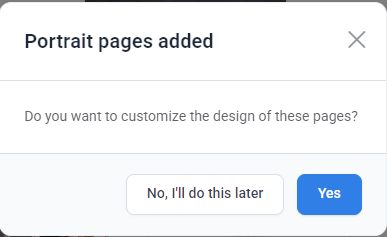
Step 5 Launch the pages in the editor to customize them (Optional).
|  |
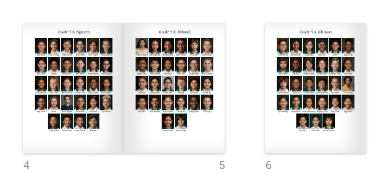
Results: a basic portrait flow appears in the section, ready to edit!
Reflowing portrait groupsIf changes are required to the group order or the groups included within a section, simply return to the book ladder to the section to repeat the steps above. Click Edit portrait pages on the right side of the section. | 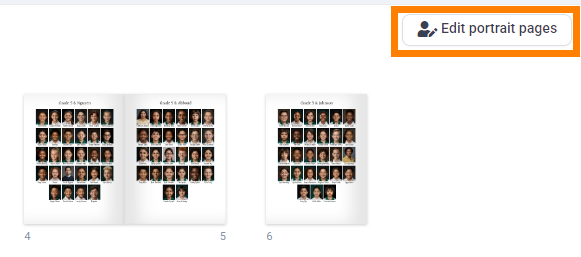 |
- Remove a group from the section by moving it from the right-side column to the left-side column. The entire page will be deleted from the book when the page disappears.
- Add another group to the section, select it from the left-side column then move it to the right side column, A new portrait page will be added to the section, ready for customization.
- Change the order of groups by dragging them to a new position. The groups will rearrange accordingly, preserving all customization (grid and styling, candids, backgrounds, elements).
Was this article helpful?
That’s Great!
Thank you for your feedback
Sorry! We couldn't be helpful
Thank you for your feedback
Feedback sent
We appreciate your effort and will try to fix the article