| Image frames hold photos, backgrounds, and elements (clipart). When an image frame is selected:
The Frame Basics article covers features common to image, text and shape frames (move, resize, rotate, delete, etc.). Below are specific features that apply to image frames. | 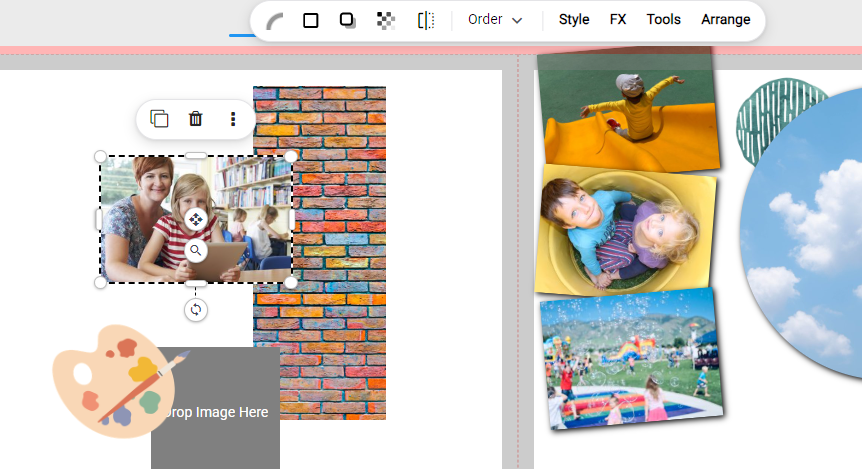 |
Images may be added to a page in several ways, allowing you to build your pages in your own manner.
| Image direct to canvas: Drag an image from the left-side pane then drop it to empty area of the canvas. | 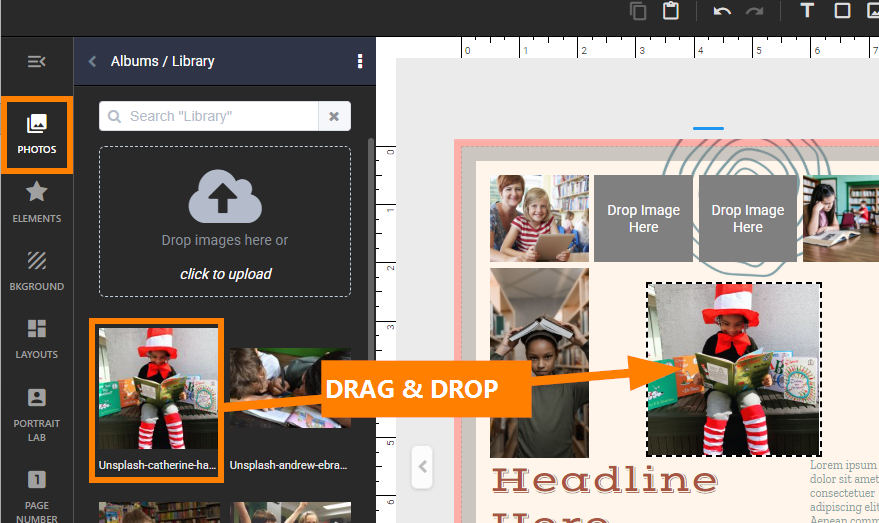 |
| Image to empty image frame: Drag an image to an empty frame on the canvas - the empty frame will highlight red when selected. Drop the image into the frame. Note: Memento includes layout collections that include empty image frames, decorative elements, customizable text frames and a background preset on the page. | 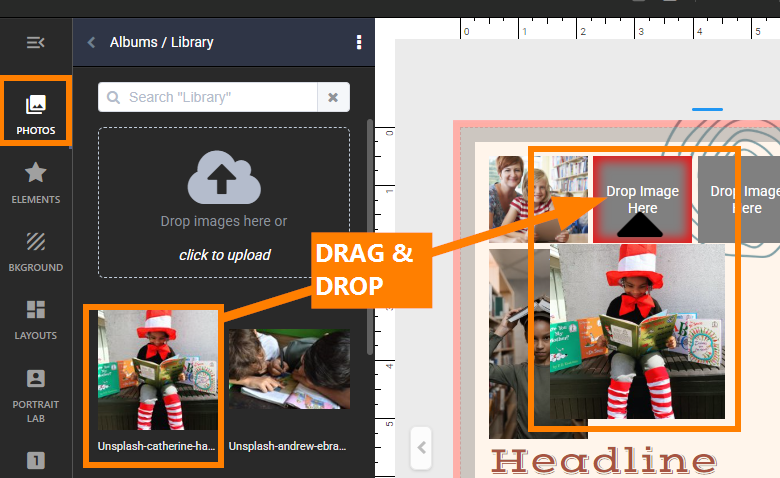 |
| Add empty image frame then add image: Add an empty image frame from the toolbar over the canvas, then drag an image from the left side pane into it. 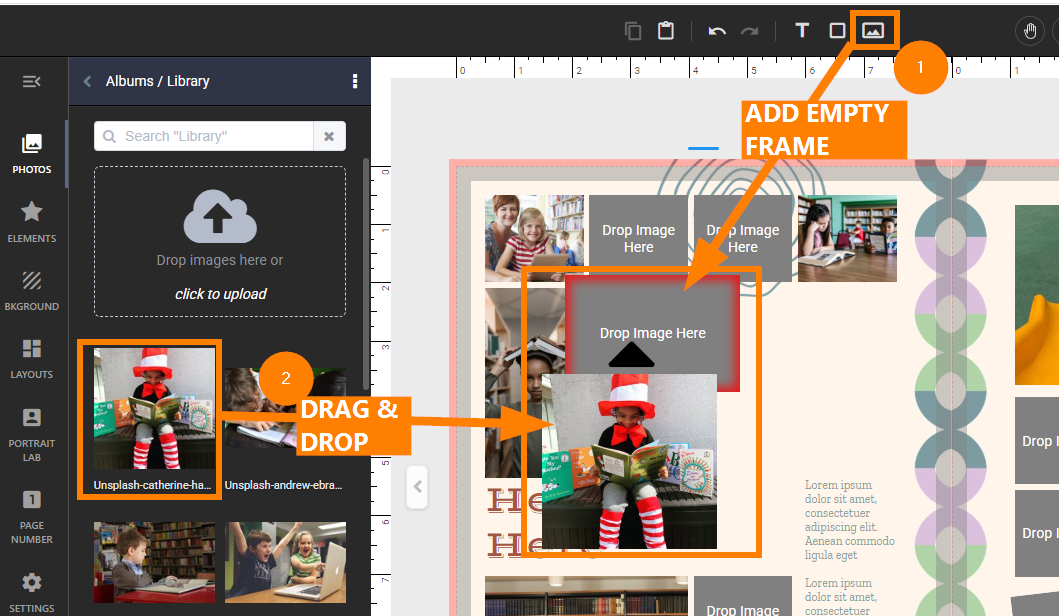 | 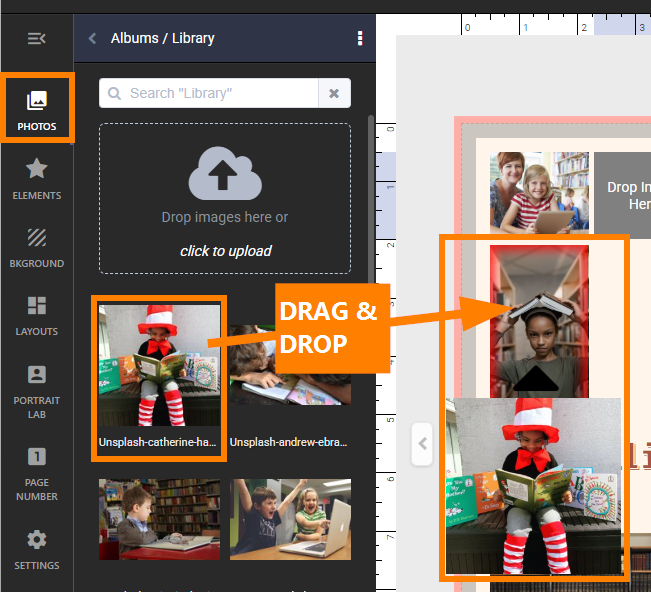 |
| Image to replace another image: Drag an image to a frame already containing an image. Drop it to replace the image with a new selection. | 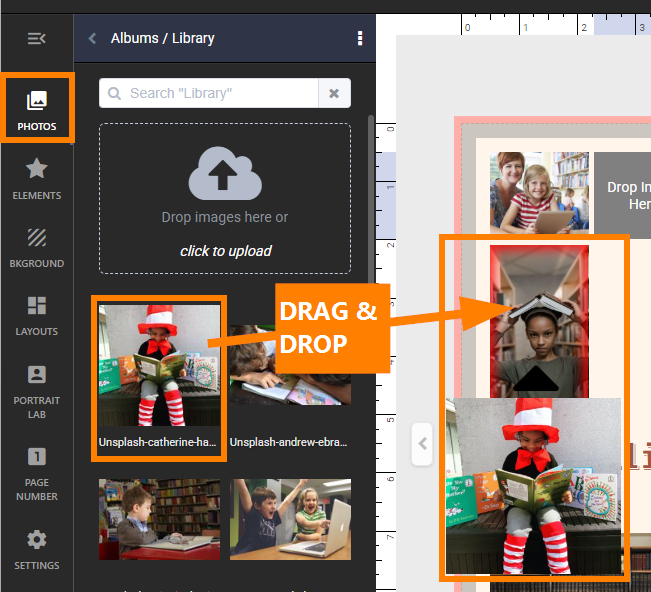 |
| Swap images between frames: Select two images in image frames on the page, then use the swap button on the selection to change which frame they are in. | 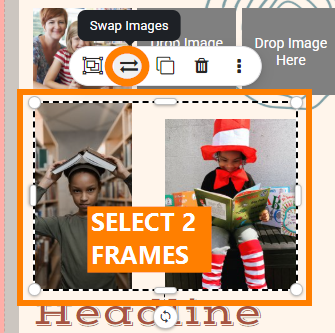 |
| Remove image from frame: Select an image frame containing an image. Click on the Image Tools button over the top of the canvas, then choose Remove Image. | 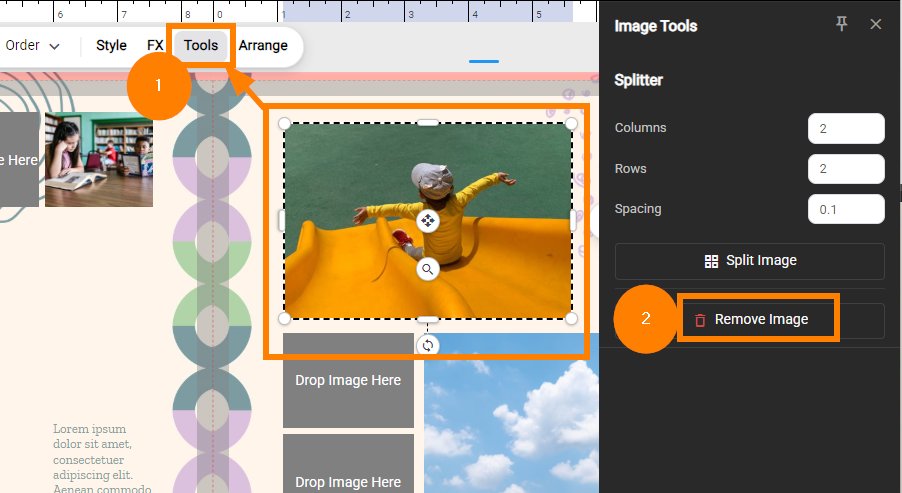 |
Layering images on top of each other
|  |
Tracking used images
Used images are placed in a special folder at the top of your Photos, Elements and Backgrounds tabs.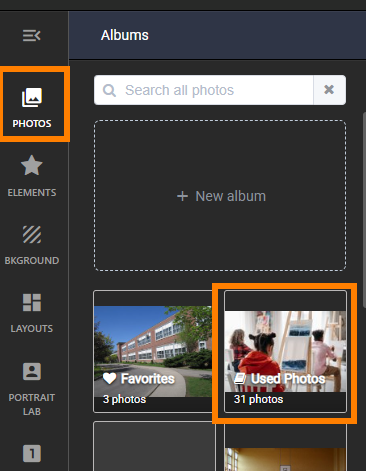 | The used image indicator will report the number of times the image has been used; hover over the indicator to see what pages the image appears on. 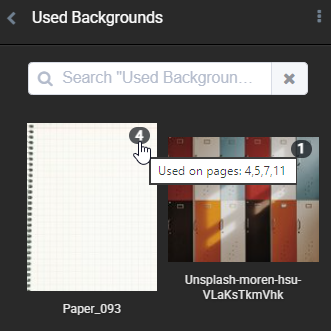 | Used images may be hidden from view with an album, to ensure that only unused images are accessed to add to the page.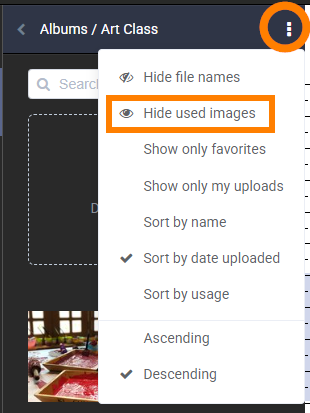 |
Was this article helpful?
That’s Great!
Thank you for your feedback
Sorry! We couldn't be helpful
Thank you for your feedback
Feedback sent
We appreciate your effort and will try to fix the article