Memento provides a handy review of your book’s completion status and provides tools to keep you and your team organized on the Overview tab.
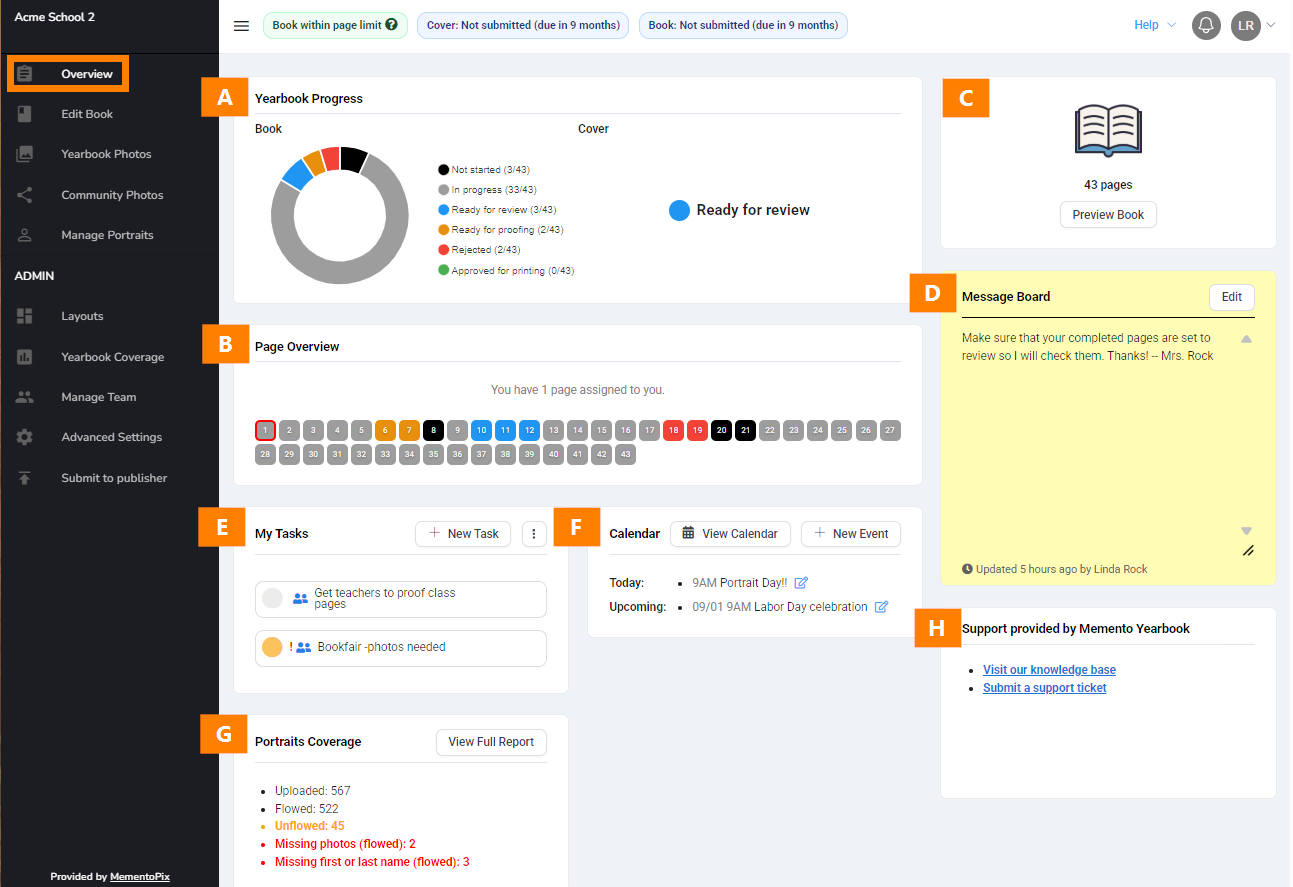
| A- Yearbook Progress | B- Page Overview | C-Page Count | D- Message Board |
| E- Task List | F-Team Calendar | G- Portrait Coverage | H- Support info |
Yearbook Progress & Page Overview
Monitor the completion and review status of your book in the Yearbook Progress chart, and check out Page Overview to see their status. Clicking on a page in the Page progress area will launch the book ladder to provide an immediate preview and access to edit it.
These handy visualizations of your book completion status are particularly useful for larger yearbook teams where the editor(s)-in-chief works with junior editors and staffers on assigned pages.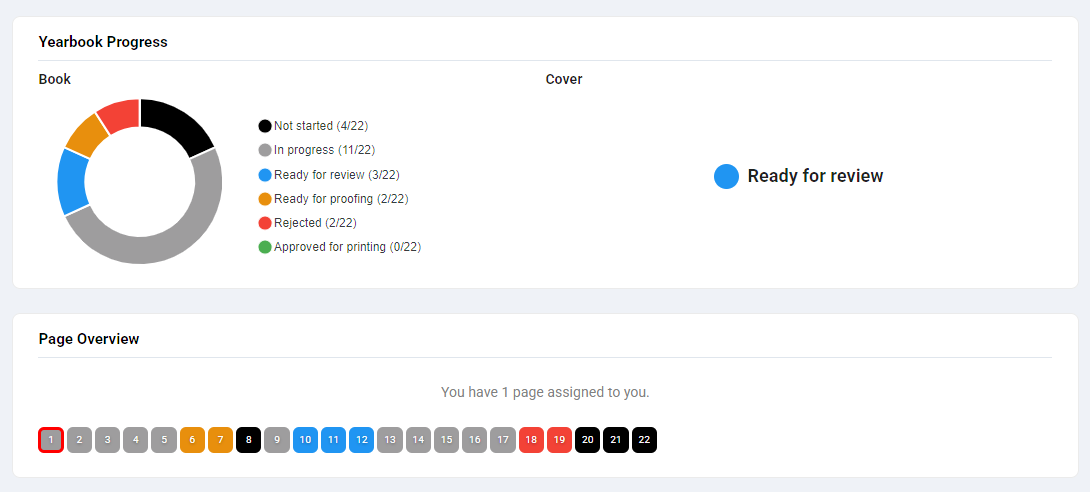
The book's progress is represented as a circle, using color-coded statuses for a quick visualization of the percentage of progress made.
| Not Started | Blank pages that have been added to your book but have yet to be edited. | |
| In Progress | Pages that have been edited but still need to be completed or sent for review. | |
| Ready for Review | Pages marked as complete have been submitted to the Editor (s)-in-Chief and Editor(s)—for approval or comments. | |
| Ready for Proofing | Pages that have been reviewed and approved by an Editor-in-Chief or Editor are prepared to undergo the final proofing process. | |
| Rejected | Pages were reviewed but rejected by the editor-in-chief or Editor. These pages require further editing before being resubmitted. | |
| Approved for Printing | Pages that have been proofed are ready to be sent to the publisher. |
Page Count and PreviewReview your page count, and generate a pdf proof of your entire book in a single click via the Preview Book option. The pdf is lightly watermarked, but suitable for download and local printing to provide a markup copy to proof-readers. |  |
Tip: If you need change the number of pages in your book or ask about submission deadline extensions, contact your photo studio or yearbook company.
Assigned Task ListEditors-in-chief and editors may create tasks for team members.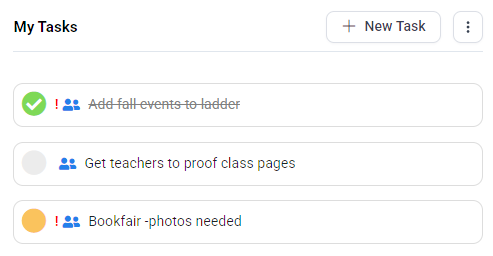 | Add a priority and status for a new task, and assign it to a team member so they will see it on their Overview page. 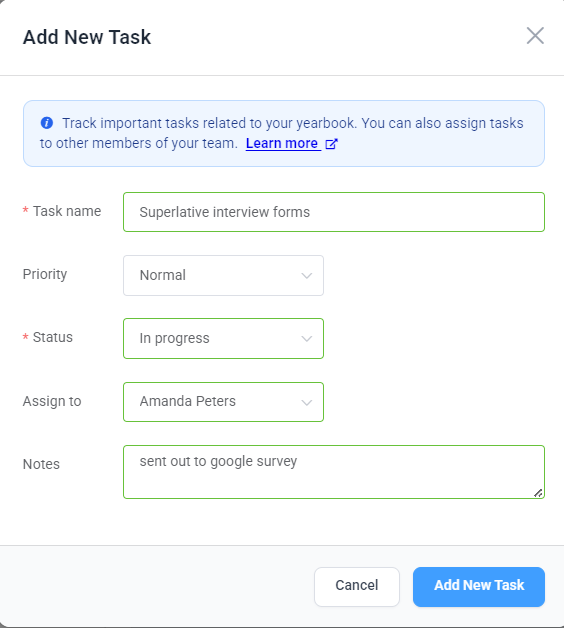 |
View and sort tasks as you prefer to see them.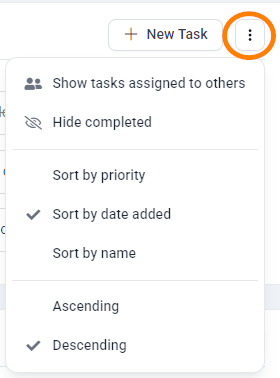 | To update or delete a task, cover over it. Click on the pencil icon to update the task: change its status to In progress or Completed". change the priority, reassign it, or update the task name and description. Delete a task to cancel it. 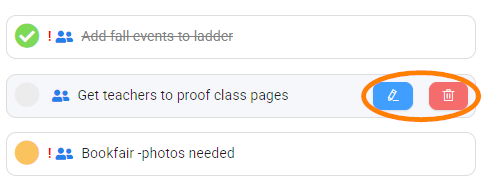 |
CalendarTrack upcoming events on your team calendar. Upcoming events for the month are shown on a short list. Review the entire calendar on a month by month basis. All events are editable by clicking on them. | 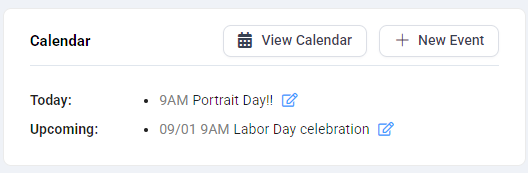 |
Message BoardLeave a message for the team – inspirations, instructions, or other important info that everyone needs to know. | 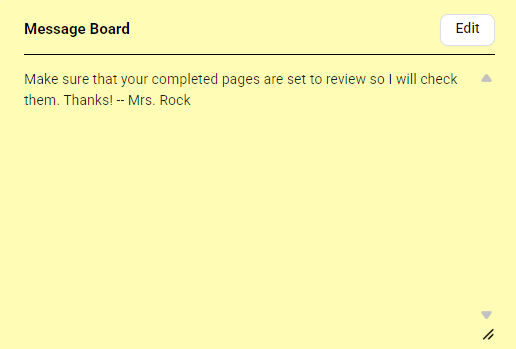 |
Portrait Coverage ReportOnce your portraits have been uploaded to the portrait manager, this report will warn about portraits that have not yet made it to pages in the book or that are missing critical data. | 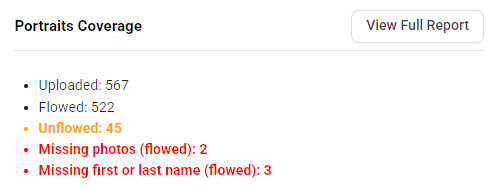 |
Was this article helpful?
That’s Great!
Thank you for your feedback
Sorry! We couldn't be helpful
Thank you for your feedback
Feedback sent
We appreciate your effort and will try to fix the article