| After your book ladder has taken shape, pages may be assigned to one or more team members. Team members assigned with the role of Staffer may only edit the pages assigned to them. To assign a single page, hover over a page, click on the menu icon, then choose Assign to. | 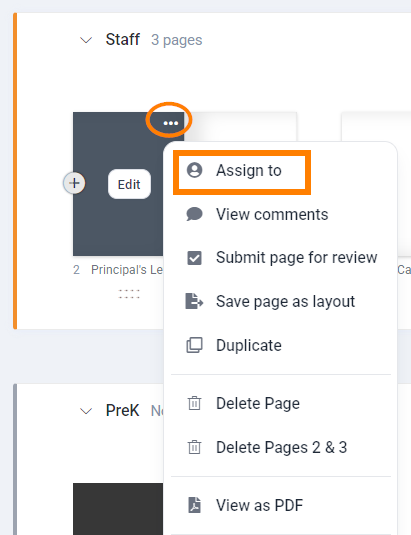 |
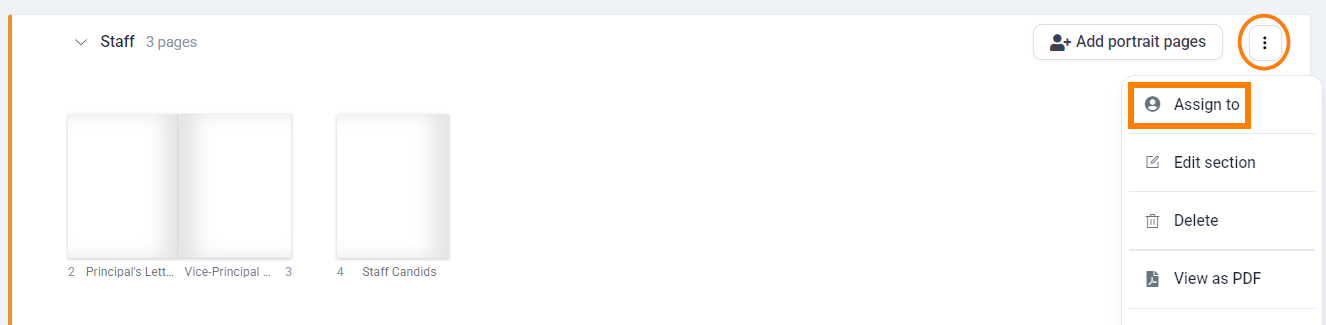
To assign an entire section, click on the section menu icon then choose Assign to.
Checkmark the users (s) responsible for the page or section. Click the blue arrow to move the user(s) to the Assigned column.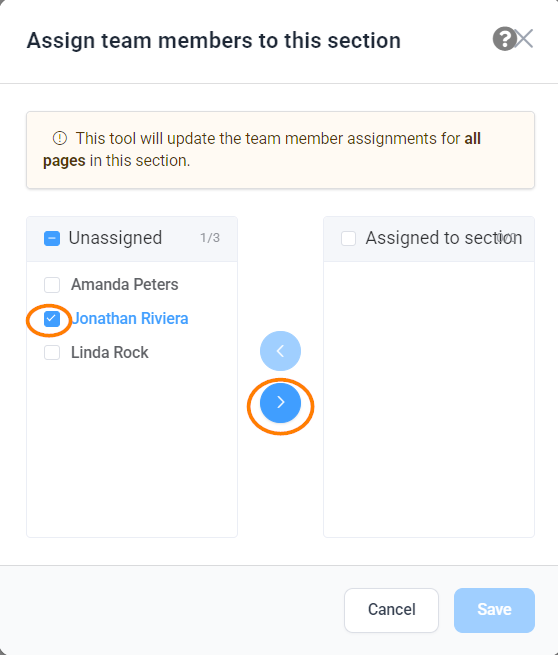 | Save to complete the page assignment. If you need to unassign or reassign users to a page or a section, simply repeat these steps, but select and move the user from the Assigned column to the Users column. 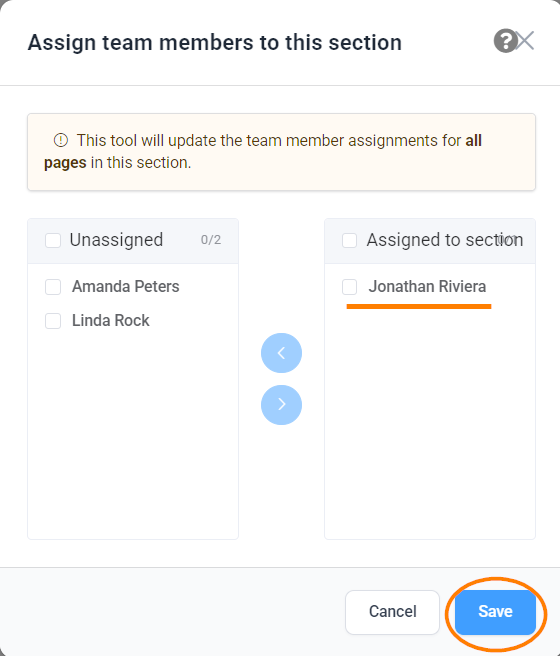 |
Important: Team members with the role of staffer may only work on portrait pages if assigned to every portrait page within a section. Editing of portrait pages by staffer is limited to adding backgrounds, candid images, and elements to the page. Only editors and editors-in-chief may configure and style portrait pages.
Staffers must also be assigned to both left- and right-facing pages to work on a double-page spread.
To note: when a team member has a page opened in the Editor, the page or spread will appear to be locked by them. Users may work on different pages within a section at the same time, but not the same page/spread at the same time.
Book ladder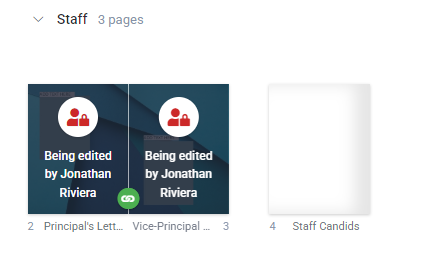 | Pages preview bar in the editor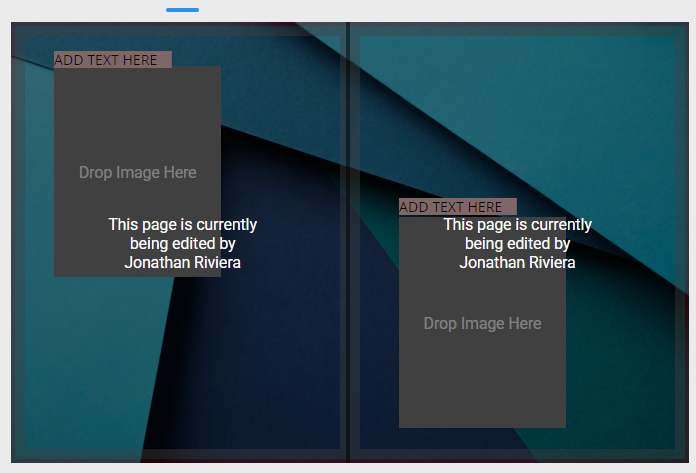 |
Next... Learn how to highlight page status by user and other criteria.
Was this article helpful?
That’s Great!
Thank you for your feedback
Sorry! We couldn't be helpful
Thank you for your feedback
Feedback sent
We appreciate your effort and will try to fix the article