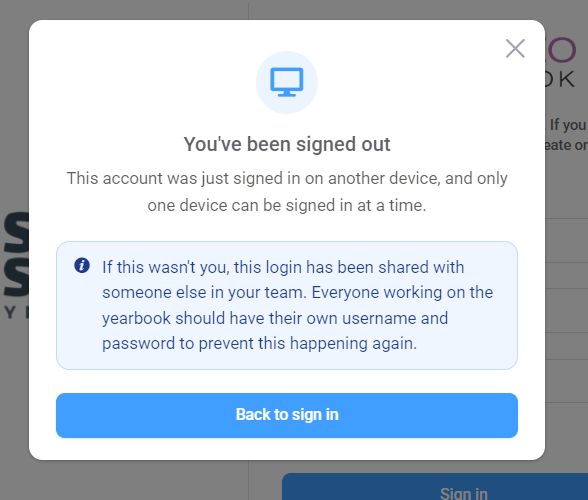
Personal Account RequirementAs per Memento's Terms of Use, each member of the yearbook committee must have a unique username and password. This requirement ensures individual accountability and secure access to the yearbook project.
|
User Roles
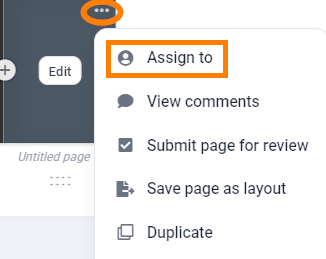
Team members are assigned distinct roles with permissions and feature access.
| EDITOR-IN-CHIEF | EDITOR | STAFFER | |
| Recommended for | Lead adviser | Trusted senior designer | Students or guest contributors |
| Page editing access | All pages | All pages | Assigned pages/sections |
| Photo upload permissions | Yes | Yes | Optional assigned permission |
| Photo album management | Yes | Yes | Optional assigned permission |
| Portrait management | Yes | Optional assigned permission | No |
| Portrait page grid, layout and styling | Yes | Yes | No |
| Manage team members | Yes | No | No |
| Manage book ladder | Yes | Yes | No |
| Can review, approve/reject other team members pages | Yes | Yes | No |
| Can proof submitted book | Yes | No | No |
| Can submit book to publisher | Yes | No | No |
* Staffers may decorate portrait pages (add backgrounds, elements, candid photos) but may not configure portrait grid or settings. The staffer must be assigned to all portrait pages within the section to customize them.
Adding a new team member
Editors-in-chief may add additional team members. Click on Manage Team from the left-side menu under the Admin section. Click on ADD NEW to create a new team member.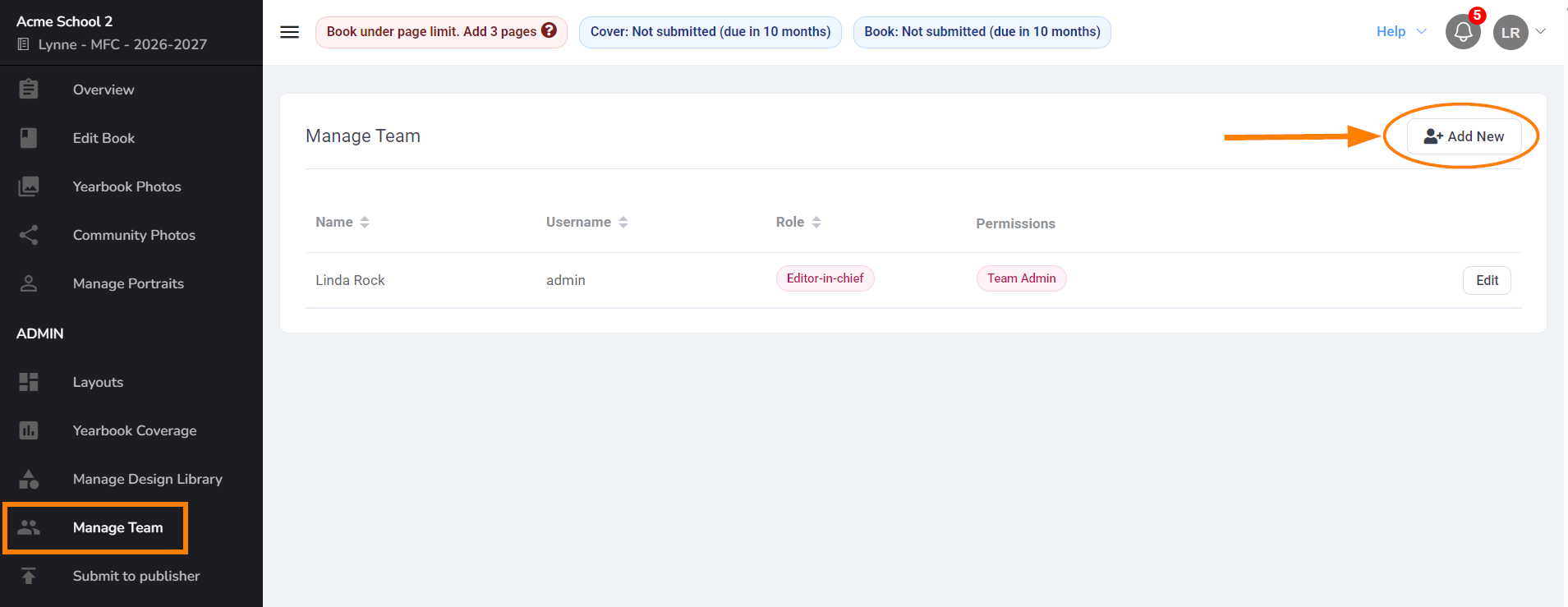
Complete the form to add your new team member. Fields marked with a * must be completed: First and last name, username, and password fields.
COPPA Acknowledgement
If COPPA (Child Online Privacy Protection Act) limitations have been set up for your book, you will need parental permission to create an account for children under the age of 13. Please read the Children’s Online Privacy Protection Act article for more information and downloadable permission forms. | 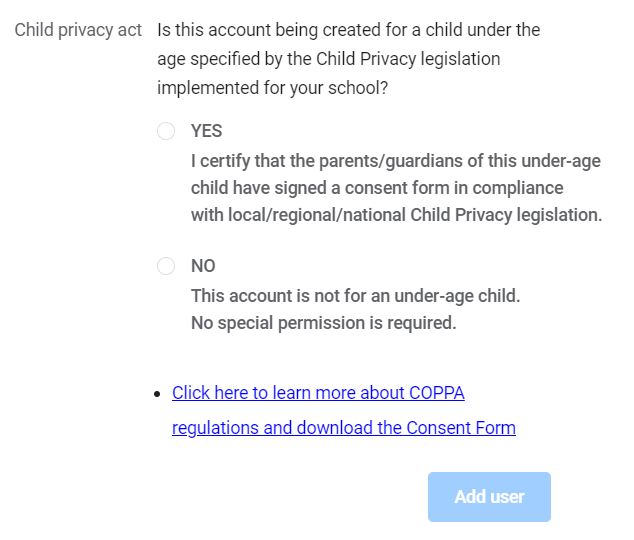 |
Sending an automatic login email
Complete the email area in the form if you would like your team member to receive a login invitation email.

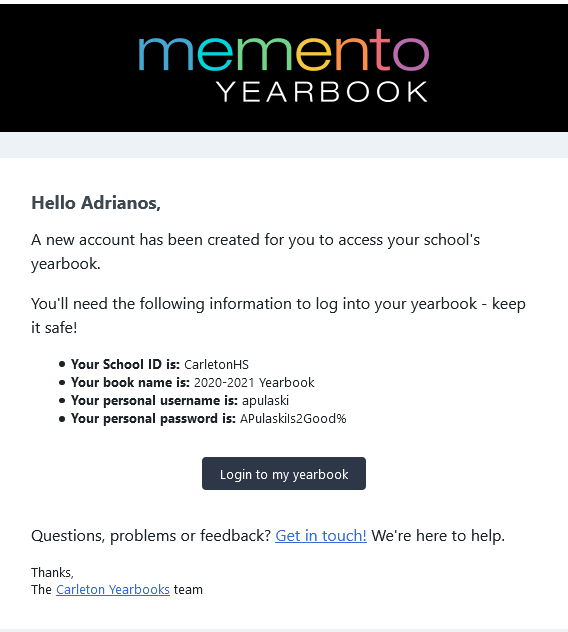
Adding an email also will allow the team member to retrieve a lost password without the assistance of an editor-in-chief.
Sending login information manually (no email address)
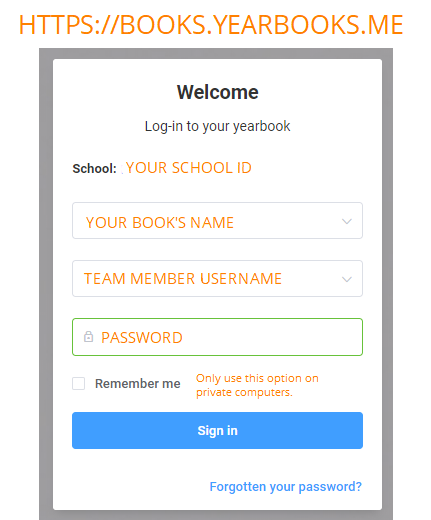
If you are not able to enter an email address for your team member, you will need to provide them with login information. Include the following details:
|
|
Deleting a user
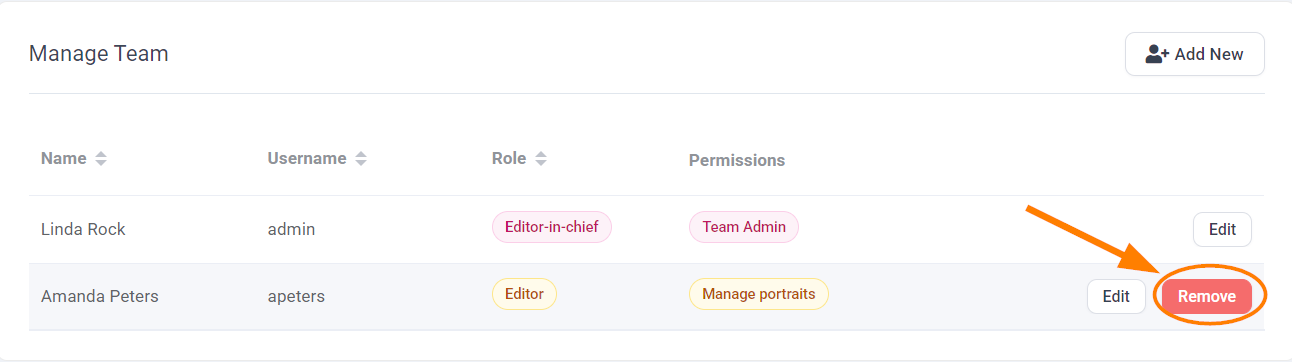
Only Editors-in-Chief can remove a team member. Click on the Manage Team link in the left-hand menu under the Admin section, then click Remove to delete the selected account.
Updating a user's info, role & permissions
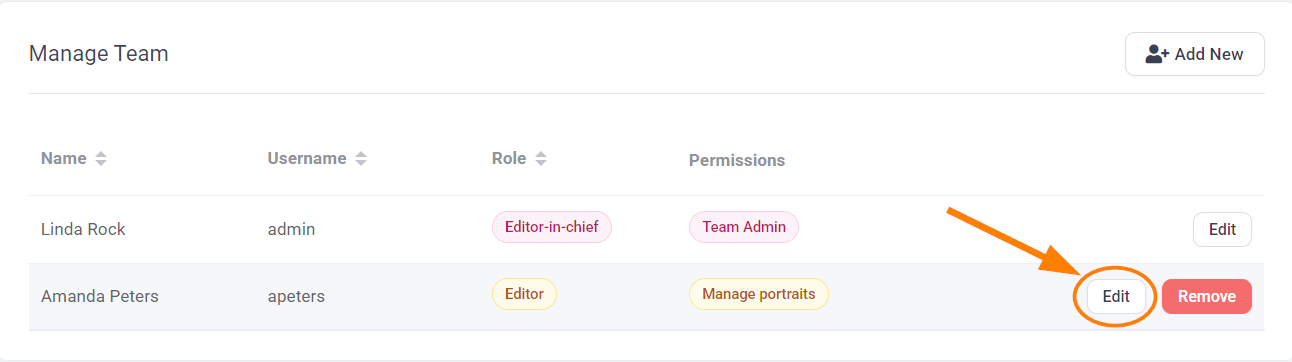
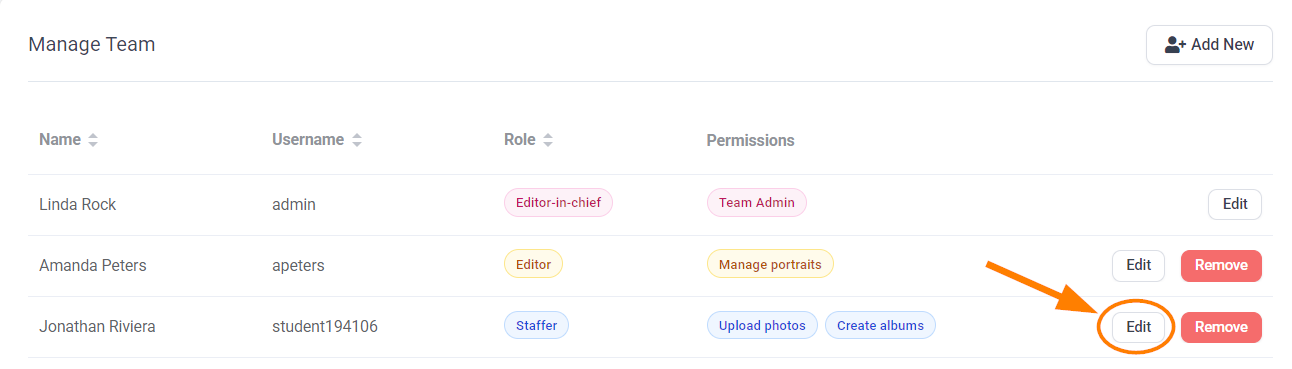
Only Editors-in-Chief may edit the permissions for a team member. Click on the Manage Team link in the left-hand menu under the Admin section, then click Edit to access the user's info.
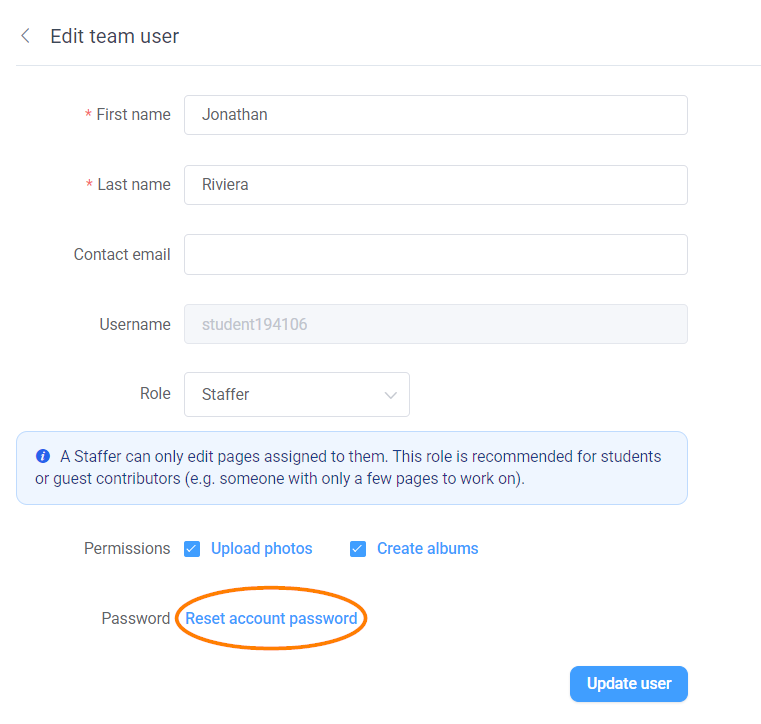
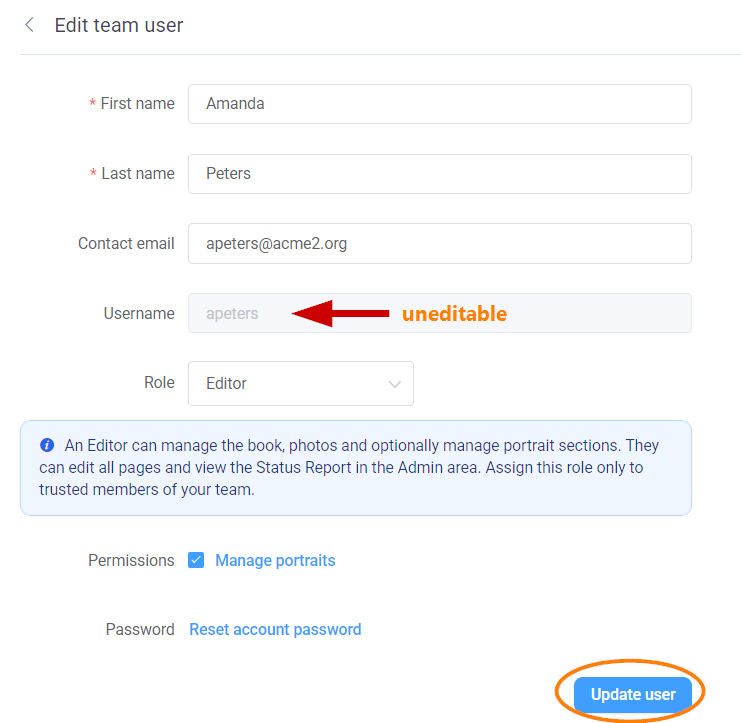 | Information that cannot be edited is greyed out. You can edit their first and/or last name, change the role type, permissions and/or reset the password. Click Update User to save the changes. |
Resetting a user's passwordTeam members with email addresses associated to their account may reset their own password. To do so, have the user visit https://books.yearbooks.me/ and type in your school id. Select the username from the list, then click on the Forgotten your password? link | 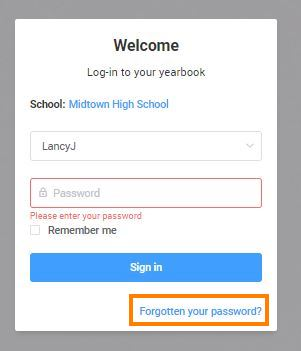 |
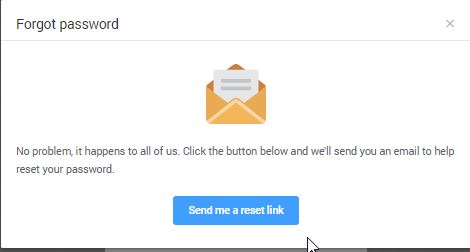
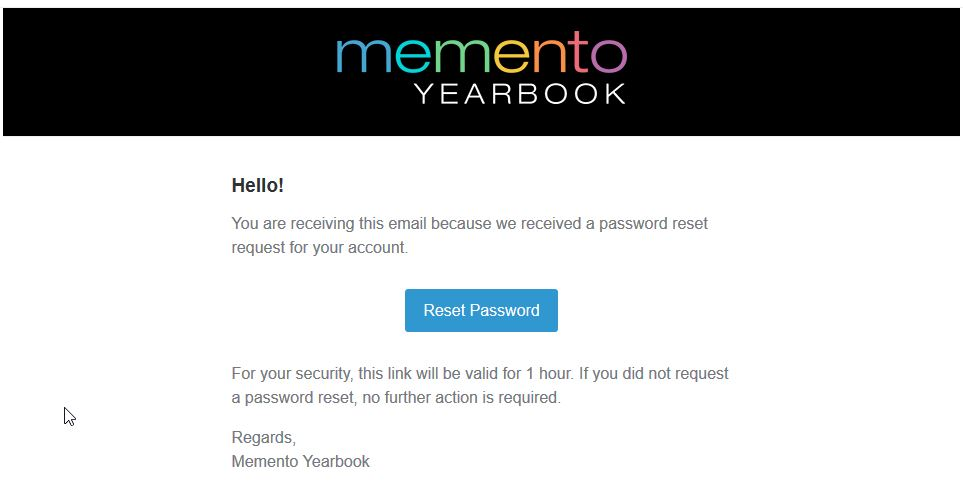
Click on the Send me a reset link button to send a reset email to you. The email will contain a link to reset the password.
 |  |
For accounts that do not have an associated email, Editors-in-Chief may reset their passwords. Click Edit next to the team member's account info to see its details.
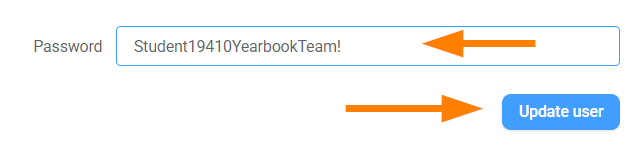
Click on Reset account password. Type the new password, then click Update user to save the the new password. Be sure to notify the team member of this password change so that they can continue to work on the yearbook.
 |  |
Was this article helpful?
That’s Great!
Thank you for your feedback
Sorry! We couldn't be helpful
Thank you for your feedback
Feedback sent
We appreciate your effort and will try to fix the article