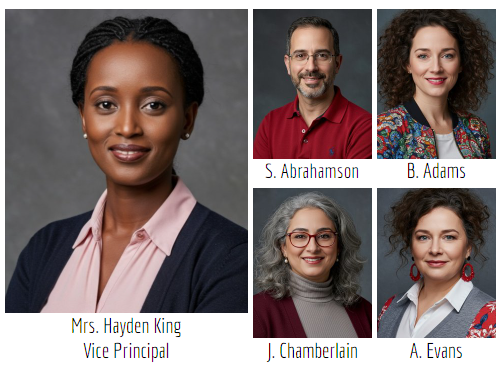
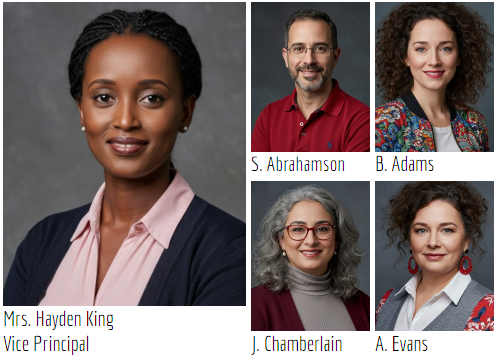
Every portrait group includes name labels under or next to the images Some portrait styles include additional memory and quotation fields.
Portrait labels are styled directly on the portrait page, just like a regular text frame. The text content that appears in the label is controlled via settings on the Portrait Labs' Advanced settings, pulling information from the portrait database.
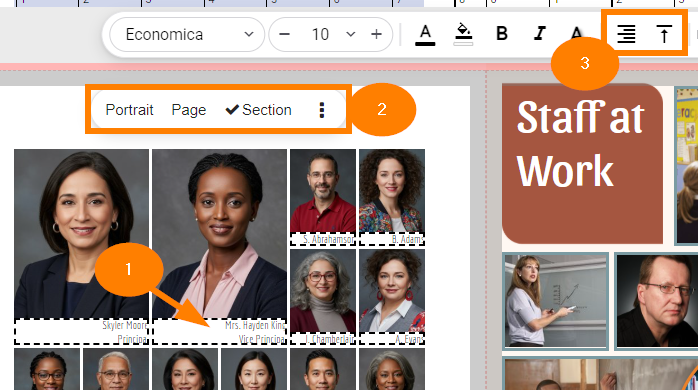
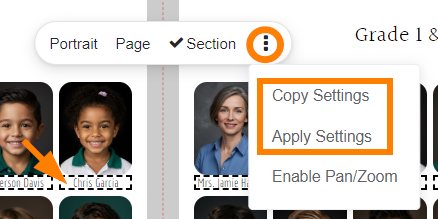
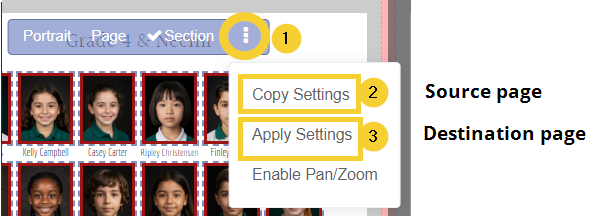
Copying styling between portrait labelsPortrait image styling may be copied from one frame to another individually or to an entire section. - Select a label that has been styled.
- On the toolbar, choose the extended menu.
- Copy settings.
- Move to a different label frame.
- On the toolbar, choose the extended menu.
- Apply the settings.
|  |
|  |
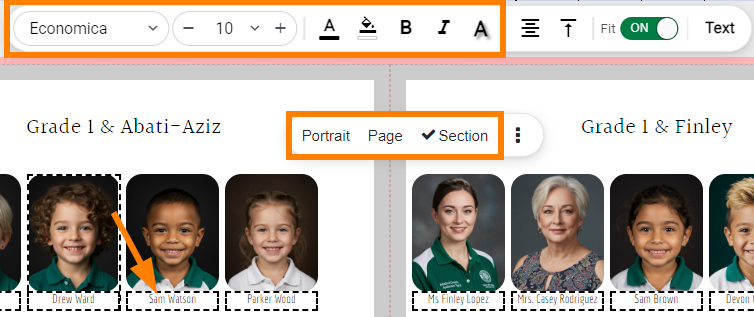
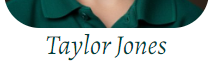
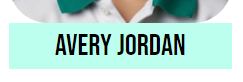
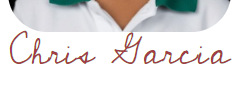
Label font, size, color, and shadowLabel text may be customized with font, text size, text color, background color and shadow options. - Click on a name label on a portrait template
- On the toolbar, choose Section to apply changes to all images in the section; choose Page to only update the images on the selected page; choose Image to only update the individually selected image frame,
- Apply changes to the label text features in the top tool bar, in the same manner as any standard text frame.
|  |
 |  |  |  |
| Memento is designed to ensure that names never get cut off. Keep the Resize to fit option on in the text tool bar -- this will keep standard sized names at your selected fonts, then reduce the size of longer names so they fit nicely under your portrait images. |  |
Note that senior portrait layouts that include memories/quote text may be styled in the same manner as a name label. | 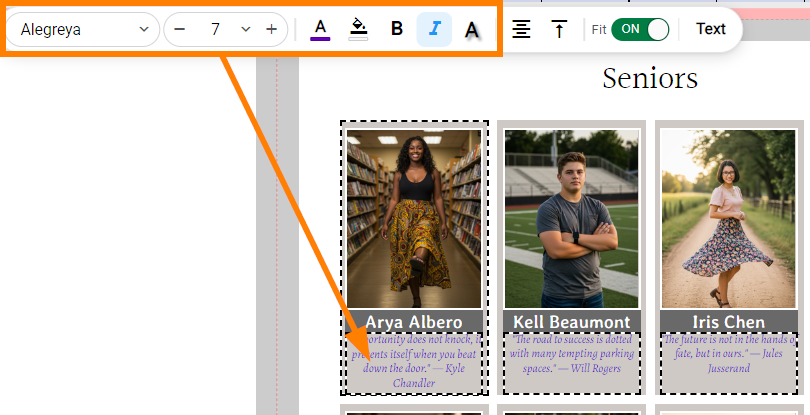 |
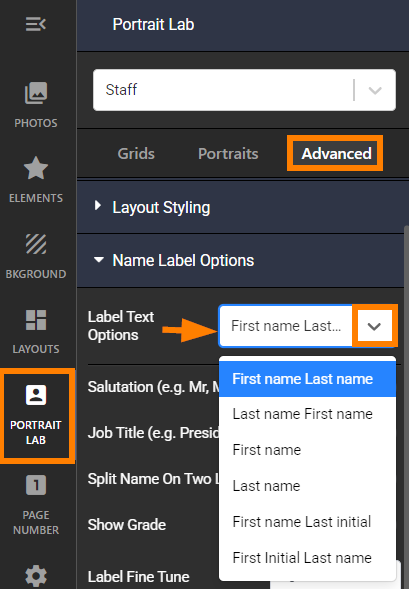
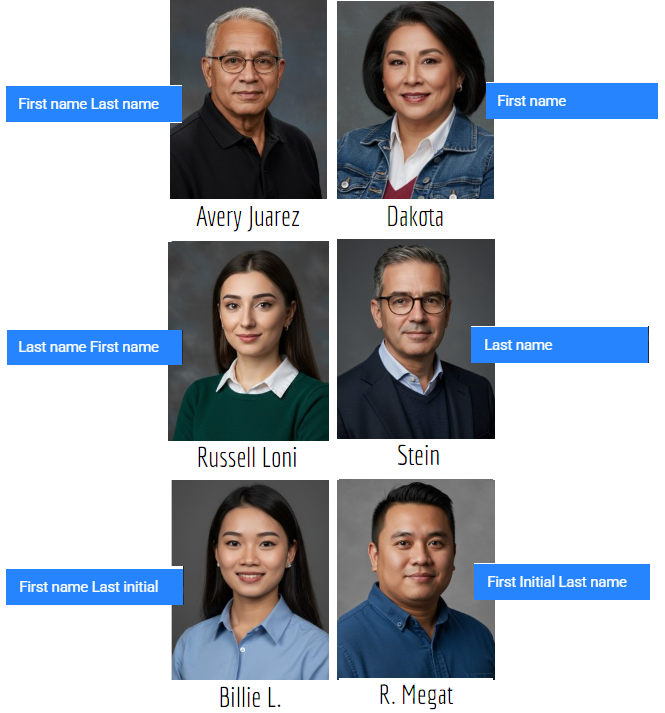
Choose the formatting of the first and last names on the label.
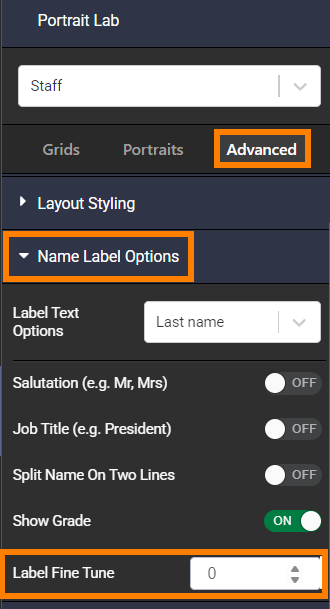
- Access the Portrait Lab tab.
- Click on Advanced.
- Open the Name Label Options drawer.
- Under Label Text Options, choose among the options:
- Firstname Lastname
- Lastname Firstname
- Firstname only
- Lastname only
- Firstname Last Initial
- First initial Lastname
- Update the layout.
|  |
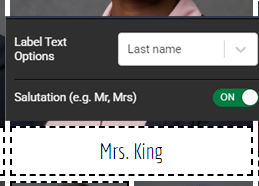
| If you want staff to appear with their salutation + last name, set the label text option to Last name only, then turn on salutation on the next option in this editor.
|  |
|
|
|---|
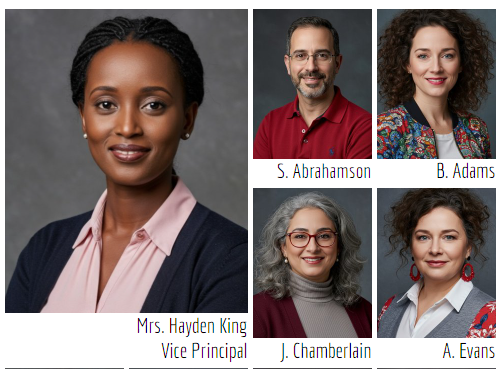
Staff salutations and job titles Include the staff member's salutation in their label - Mrs, Mr. Ms, Dr., Prof, etc.). If no salutation was entered in the portrait manager, no placeholder text will appear in the portrait grid.
- Access the Portrait Lab tab.
- Click on Advanced.
- Open the Name Label Options drawer.
- Turn the Salutation option on.
- Update the layout.
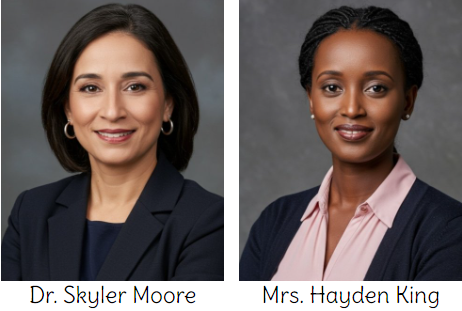
| 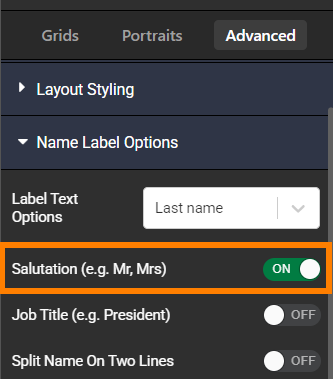 The salutation and job title are pulled from the portrait database. Update this information in the portrait manager to enable the name labels to display the information on the portrait page. |
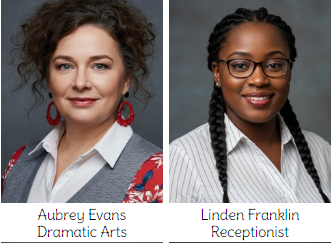
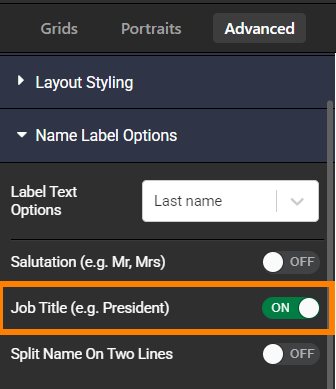
Include the staff member's job title in their label. If no job title was entered in the portrait manager, no placeholder text will appear in the portrait grid
- Access the Portrait Lab tab.
- Click on Advanced.
- Open the Name Label Options drawer.
- Turn the Job Title option on.
- Update the layout
|  |
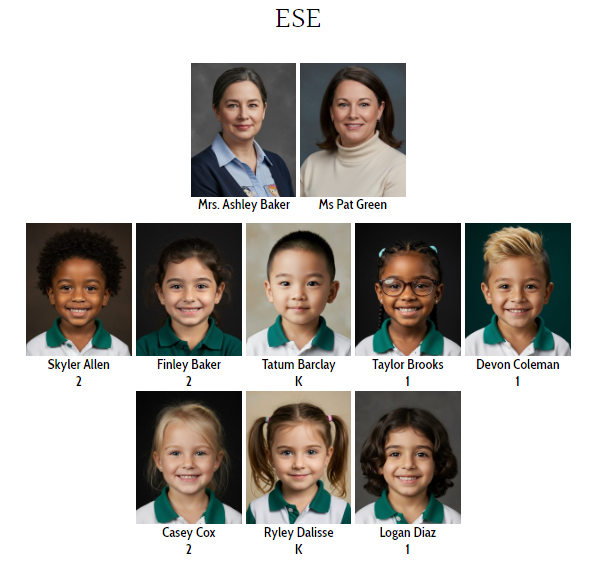
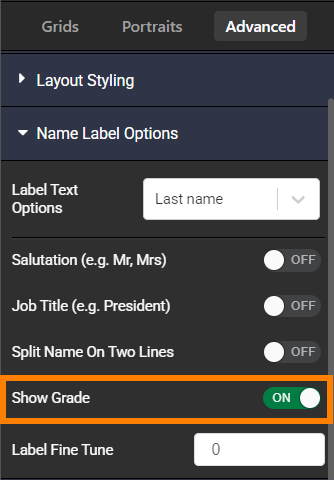
Showing grades on the labelInclude the grade in the label. This is useful for staff pages including homeroom teachers, or smaller multi-grade classes to show which grade each student is in.
- Access the Portrait Lab tab.
- Click on Advanced.
- Open the Name Label Options drawer.
- Turn the Show Grade option on.
- Update the layout
 |  |
Splitting the name on two linesIf your school has many staff and students with longer names, force the name labels to split to two lines.
- Access the Portrait Lab tab.
- Click on Advanced.
- Open the Name Label Options drawer.
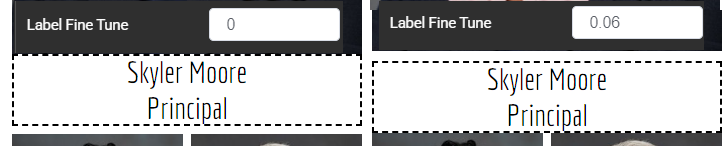
- Change the value of the Label Fine tune.
- The name position will update immediately.
Note this option should only be used with labels under the portrait, and never with side labels. 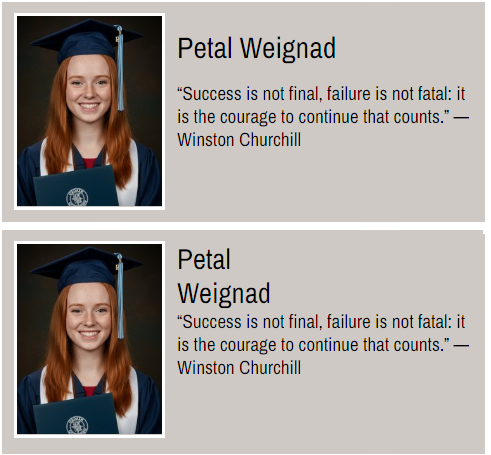 | 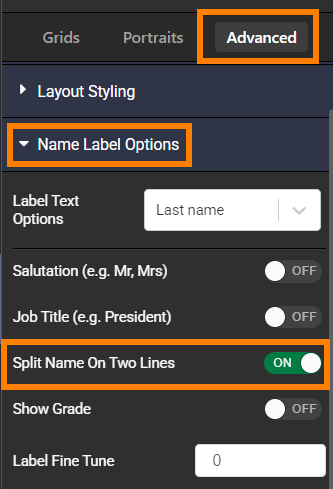 |
Feature Image label customization
Feature imageshighlight designated portraits in the grid.
Special name label rules may be applied to feature frames, differentiating them from the rest of the grid.
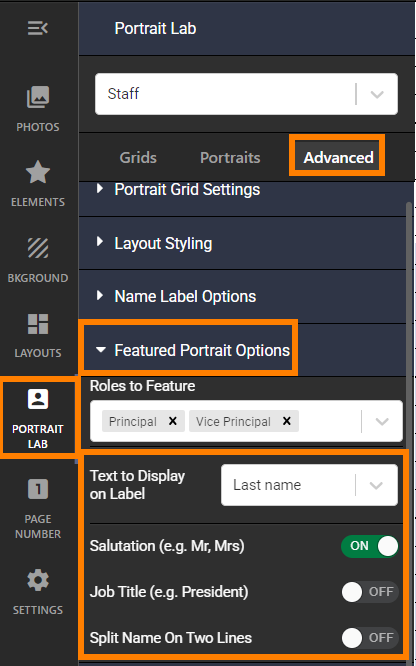
Access the Portrait Lab's Advanced tab. Open the Featured Portrait Options drawer. Click into the Text to Display on Label option. Display first then last name, last then last name, only the first name, only the last name, the first name and last initial, or the first initial and last name.
Next, optionally turn on Salutation and/or Job Title. These options will appear on a separate line on the label. Note that salutation and job title information must be added in the portrait manager. - Last, choose if the featured portraits should have first and last name split onto two lines.
|  |