Portrait Page Title Options

Created by Lynne Darroch, Modified on Mon, 31 Aug at 8:36 PM by Lynne Darroch

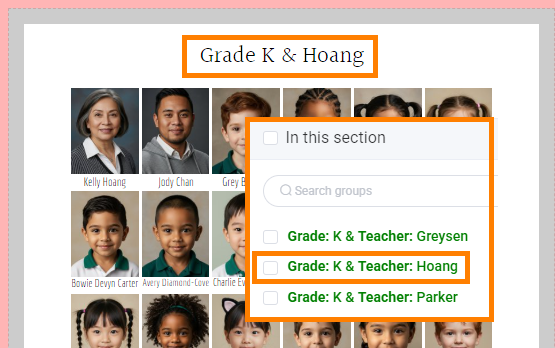
Page titles are automatically placed at the top of every portrait page in a default format.


The page title height is set to 1 inch.


The page title text content is set to the name of the group that was flowed into the section.


Page titles may be customized to update their formatting, style and content.
Text contentTitle alignment Title area height
Font, size, color shadowAdvanced text features
Title on/off


Copying styling between portrait titles


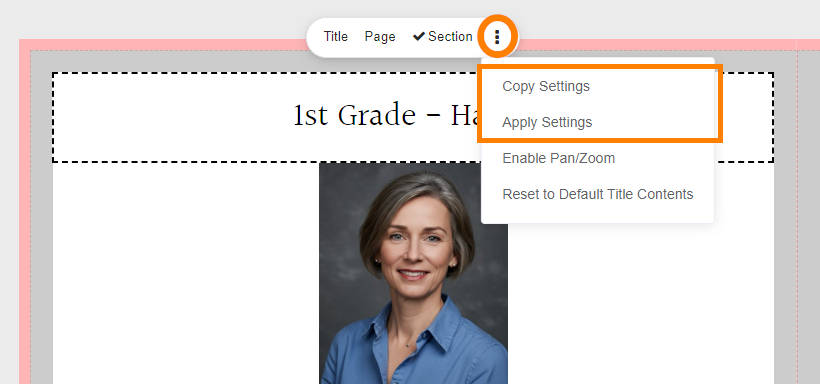
Text styling (font properties and alignment, etc.) may be copied from one title frame to another individually or to an entire section. 

  • Select a title frame that has been styled.
  • On the toolbar, choose the extended menu.
  • Copy settings.

  • Move to a different portrait page.
  • Select the unstyled title.
  • On the toolbar, choose the extended menu.
  • Apply the settings.


Updating portrait page text contents

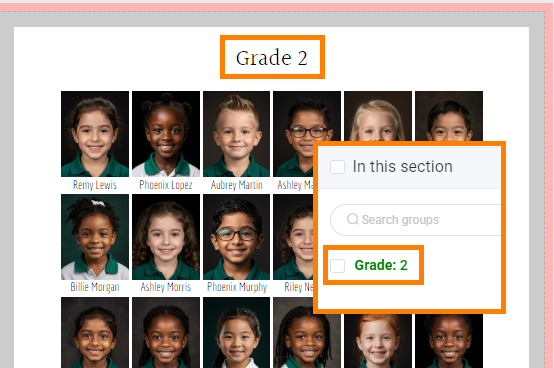
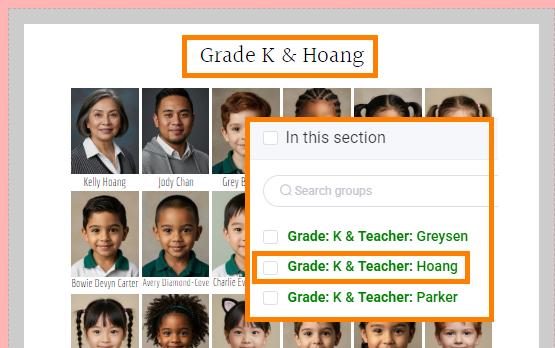
By default, the page title text content is set to the name of the group that was flowed into the section. 
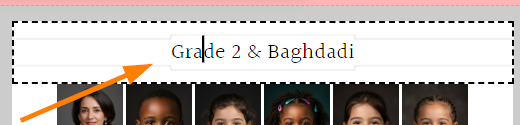
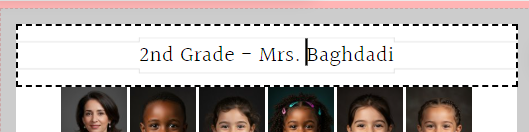
The page title contents may be updated individually by clicking directly on a page title frame on the page.

When the page title is selected, type inside the text frame to updated the text.

Only the selected page will be updated.

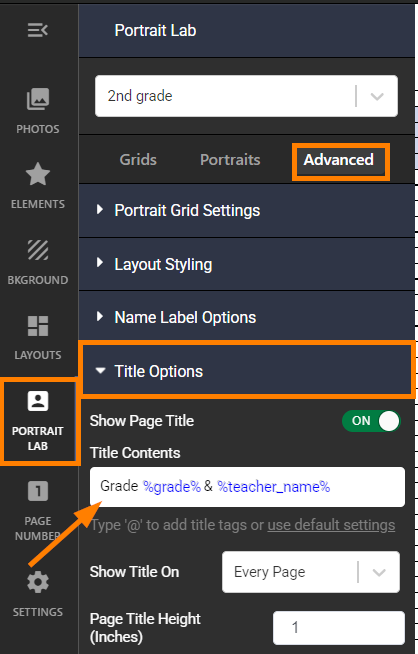
Portrait titles may be changed on all pages across the section using portrait manager data formatting.

  • Select a portrait page title.
  • Access the Portrait Lab tab.
  • Click on the Advanced tab.
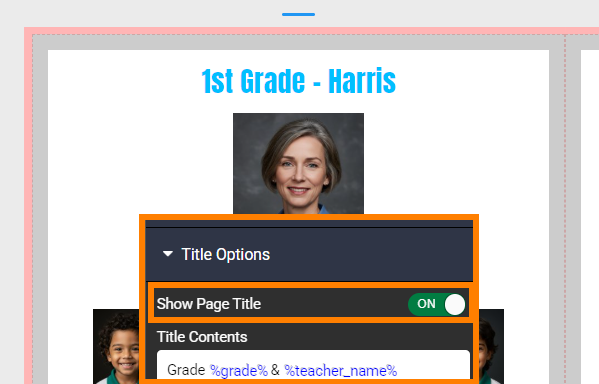
  • Open the Title Options drawer.
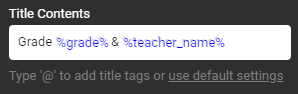
  • Review the code within the Title Contents area. 


Title contents includes words and punctuation (eg. Grade, &, -) and code related to the portrait database groups. For example, you might see %grade% %teacher_name% %department% and/or %homeroom%. The percentage signs are used to indicate that the information is related to the portrait database.
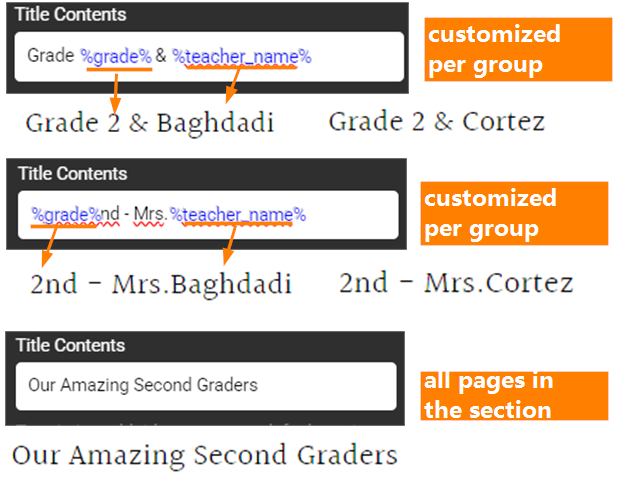
  • Click into the Title contents area to edit the text.
    Update the words and/or punctuation.
    Remove one or both of the codes.
  • Update the layout when the changes are complete.


Updating portrait page text styling

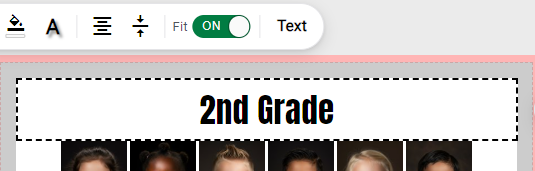
Page title font, size, color and shadow


  • Select a portrait page title
  • Choose Title (or Page) to change only the current title.
    Choose Section to change all page titles within the section.
  • Adjust the font and text size as desired.
  • Adjust the text color as desired
  • Adjust the text frame background color as desired.
  • Add a dropshadow if desired.
Text size and shadow applies to all text in the title.  Font and text color may be applied to selected text within the frame.


Page title alignment

  • Select a portrait page title
  • In the toolbar over the text frame, choose Title (or Page) to change only the current title. Choose Section to change all page titles within the section.
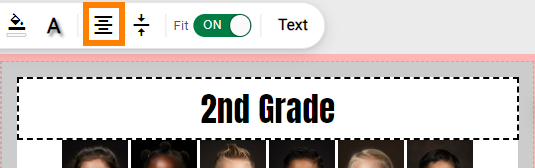
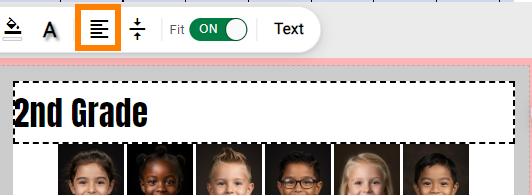
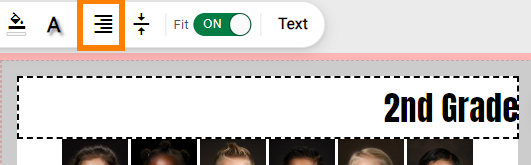
  • Choose a text alignment option.
    The text may be centered, flushed left or flushed right to the page width.

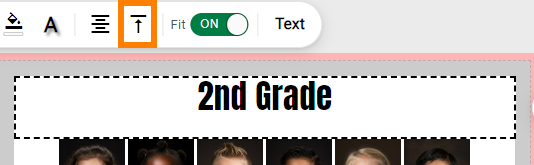
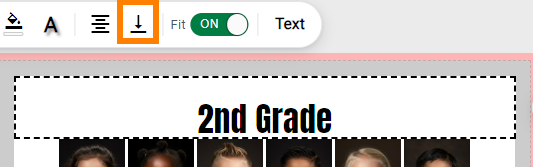
  • Choose a vertical alignment option.
    Text may align to the top, middle or bottom of the text frame.


Advanced text features

  • Select a portrait page title
  • In the toolbar over the text frame, choose Title (or Page) to change only the current title. Choose Section to change all page titles within the section.
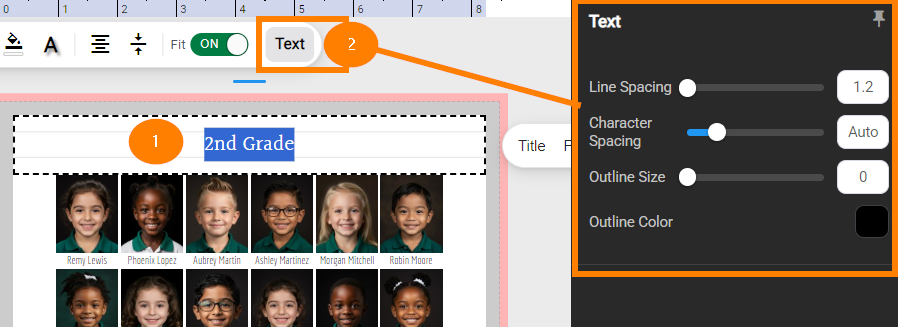
  • Click on the Text button on the toolbar to access advanced features
  • Update the 
  • Update the text outline thickness and color.


Portrait Page Title Area Height


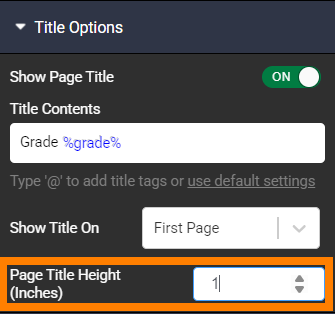
By default, portrait page titles are set to 1 inch tall.
  • Select a portrait page title.
  • Access the Portrait Lab tab.
  • Click on the Advanced tab.
  • Open the Title Options drawer.
  • Change the portrait page height value, which is displayed in inches. Use decimal points to refine your height selection (eg. 0.7, 1.5, etc.)


Turning the portrait page title on/off

Turning the portrait page title off every page

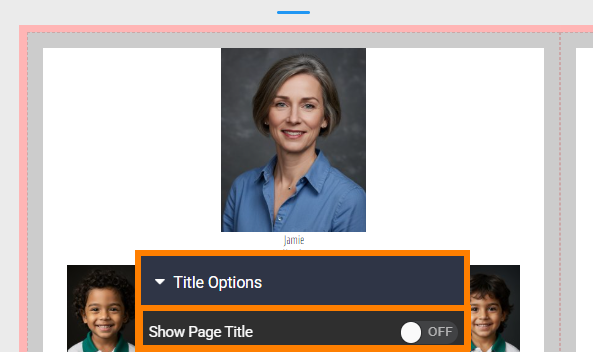
Remove the page title from all page within a section.

  • Select a portrait page title.
  • Access the Portrait Lab tab.
  • Click on the Advanced tab.
  • Open the Title Options drawer.
  • Change the Show Page Title toggle to off.


Note that your portrait grid will move up to the top of the page.


To keep the title area clear of text without the grid moving, replace the text contents with a single blank space.


Multipage flow - title only on first page

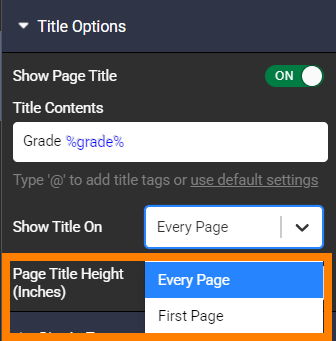
If your portrait flow includes a single group that spills onto several pages, you can display the title only on the first page of the flow.


  • Select a portrait page title.
  • Access the Portrait Lab tab.
  • Click on the Advanced tab.
  • Open the Title Options drawer.
  • Access Show Title On to switch it to First Page Only


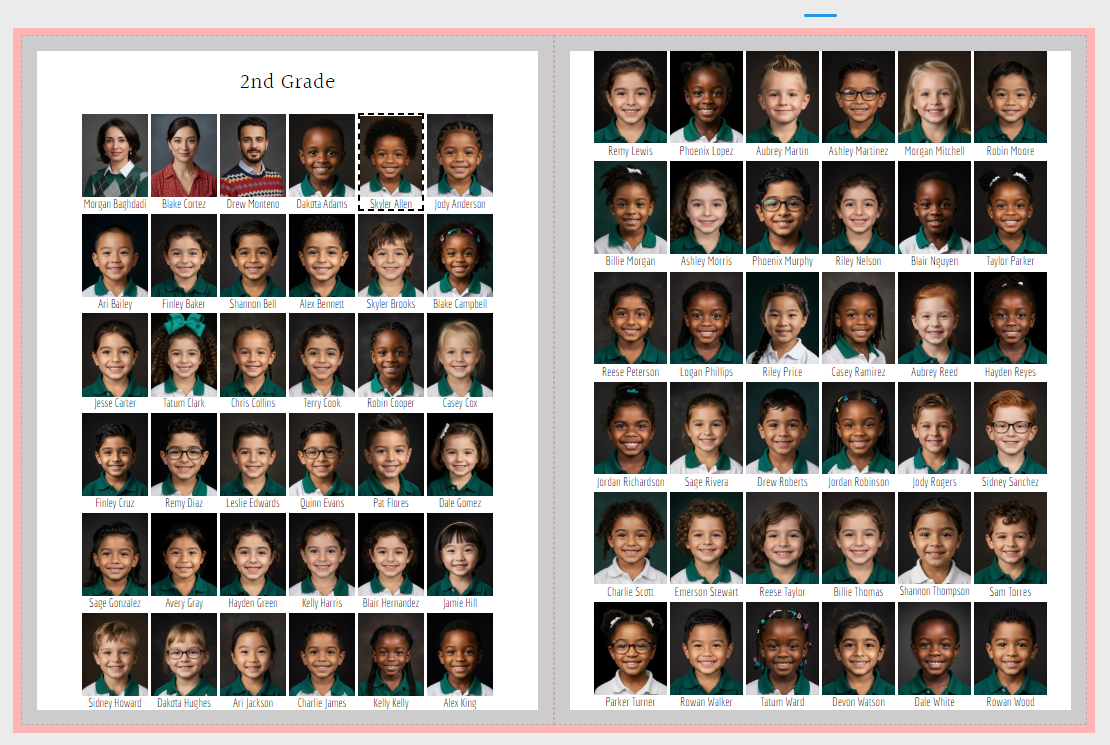
TIP: To create even rows across the spread, set the page title height to match the height of a row of portraits. 


Was this article helpful?

That’s Great!

Thank you for your feedback

Sorry! We couldn't be helpful

Thank you for your feedback

Let us know how can we improve this article!

Select at least one of the reasons
CAPTCHA verification is required.

Feedback sent

We appreciate your effort and will try to fix the article