Importing a portrait package with a data file (index.txt)
| Step 1: Editors-in-chief and editors with portrait management permissions may click on Manage Portraits to access the portrait manager. | 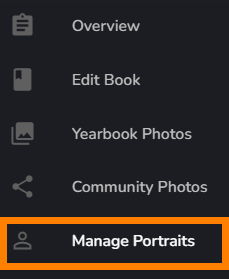 |
Step 2: Click on Import People. | 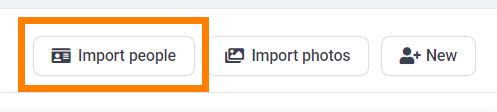 |
| Step 3: Click on Upload PSPA Index | 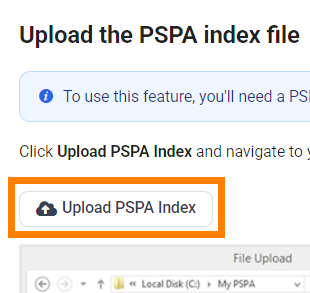 |
| Step 3: On your local drive, locate the portrait package folder. It will usually be located in your Download folder. The portrait package folder will include one or more sub-folders containing portrait photos, and one or more text files. Select the file named INDEX.TXT then open it. | 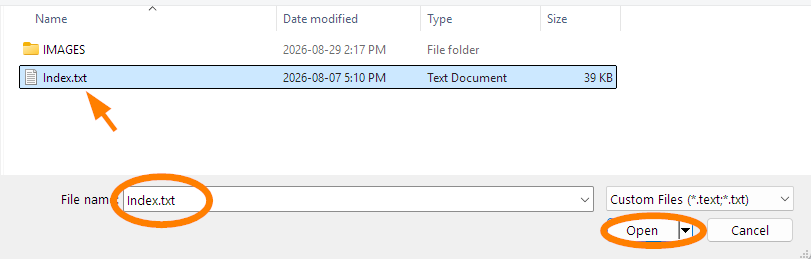 |
| Step 4: The contents of this data file will be displayed in a series of rows and columns. At the top of every column is a header, describing the data below it. Verify that the data matches the header. (eg. the Last Name column is not showing First Name or Grade data). If there is a mismatch, click on the header to choose the correct description of the data. Ensure there are no duplicate headers. If some of the data does match the header and does not appear to be useful for portrait pages (eg. the word "LARGE" appears in every row, student numbers have been included, etc.), then change the header to "Ignore Column." | 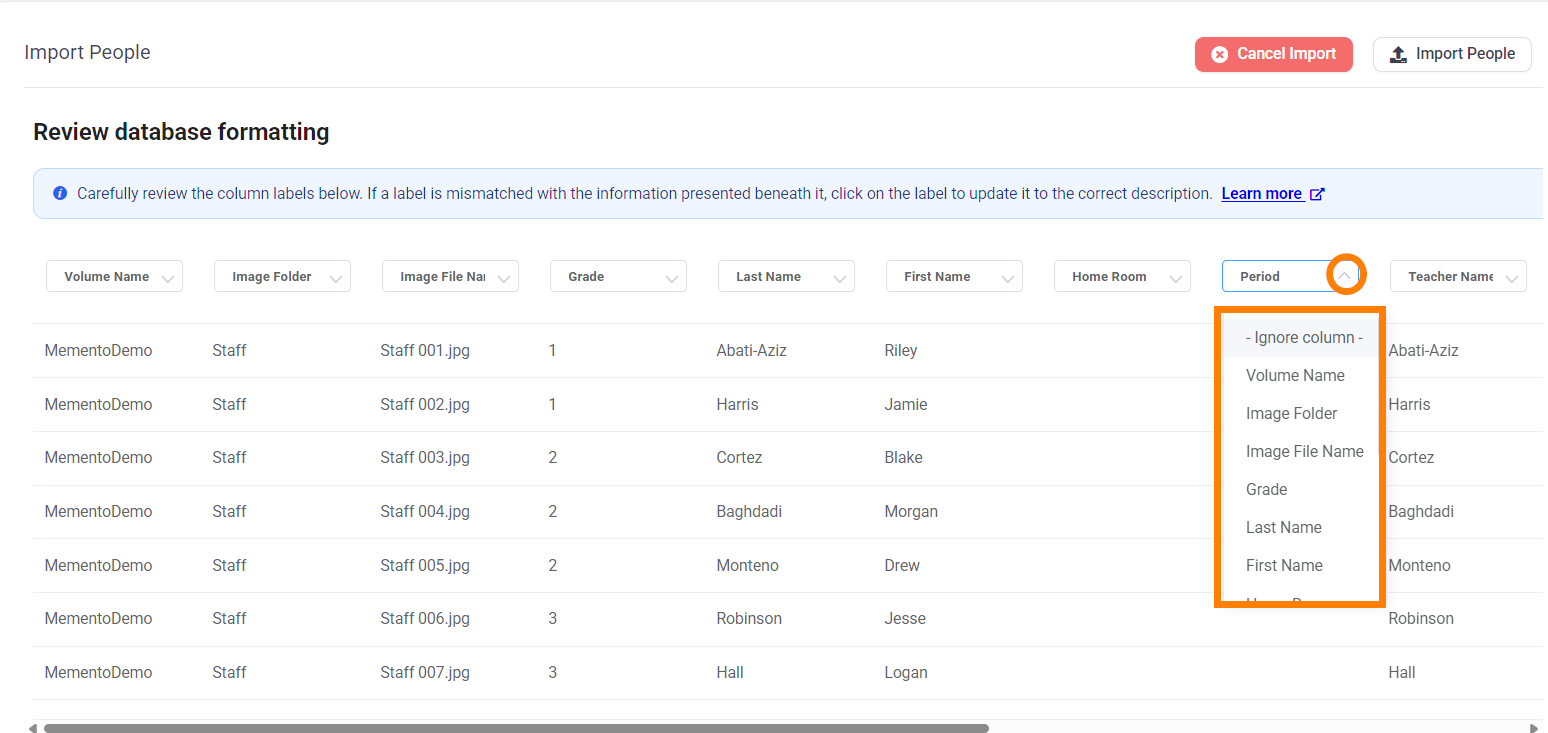 |
| Step 5: When the data table is correct, click Import People in the top right corner. The data import is complete. The portrait manager displays portrait records without photos. Problems with your import? Consult the FAQ. Next step... Add Photos. |  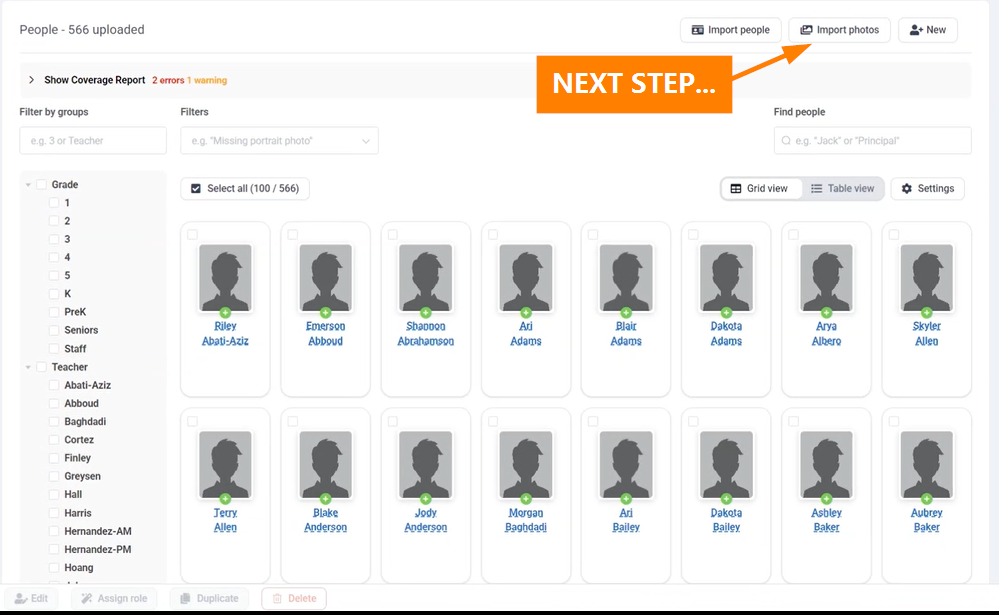 |
| Step 6: Click on Import Photos in the top right of the screen. |  |
| Step 7: Review the checkbox choices at the top of the screen. The recommended settings are on by default:
| 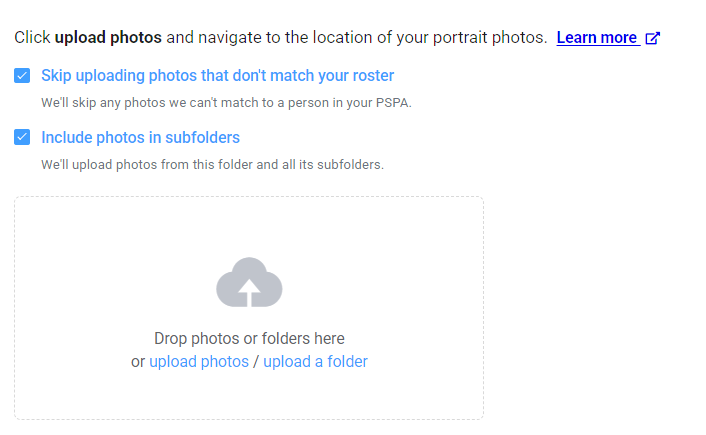 |
| Step 8: Drag the folder containing your image folders into the designated area. You may also click on the upload area to navigate manually to your local drive to select a folder. Start the upload by confirming your choice. | 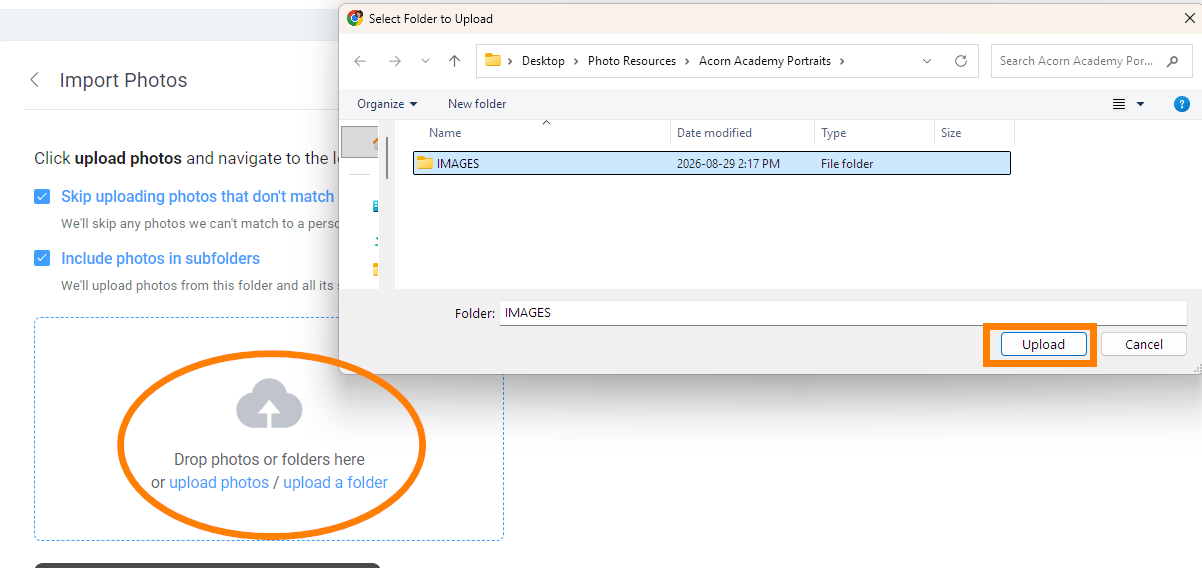 |
The upload will proceed. If the image file names match the names of the files specified in the data, all will match up.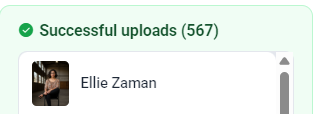 | 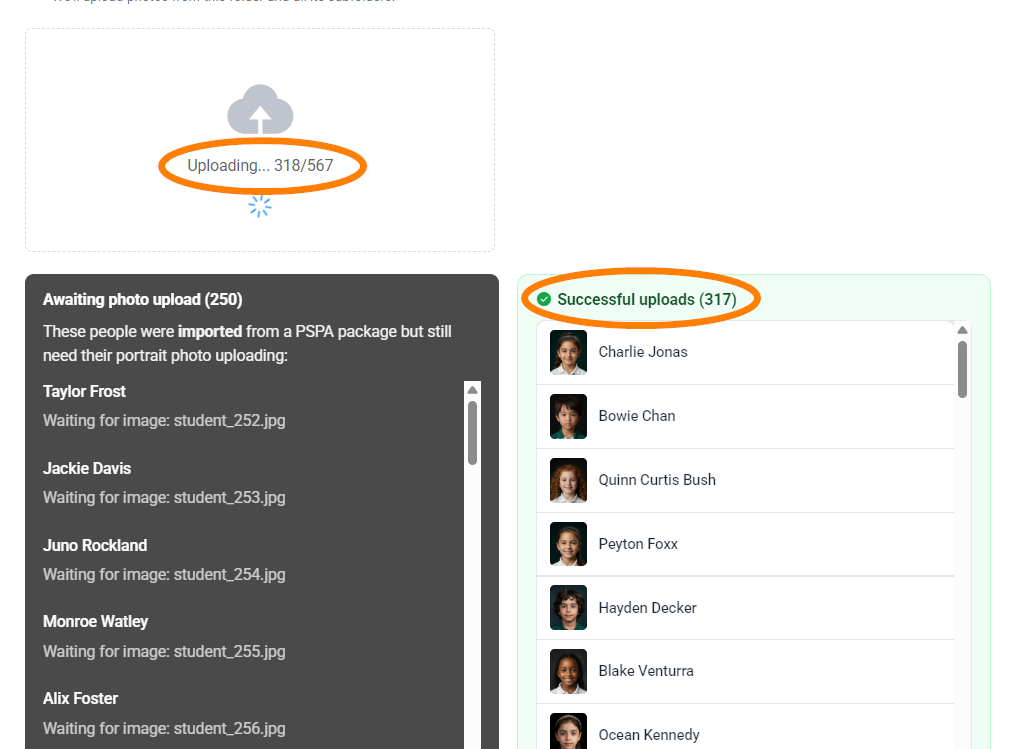 |
Return to the portrait manager to review the images and data. You may now make updates to the portrait set to correct typos, move/exclude/delete people, add new people, assign homeroom teachers to their class, add additional info for staff portraits, and enhance senior portraits with extra images and text. Learn more
Importing portraits with no data file
| If your school photographer is not able to provide a data file to accompany the portrait photos, you can still import the photos then add information about the people in the photos after import. Click on Import Photos to get started. |  |
| Ensure that "Skip uploading photos taht don't match your roster" is turned off. Drag the folder(s) containing the portrait images into the designated area or click into the area then navigate to your image folder to import the images into Memento. |  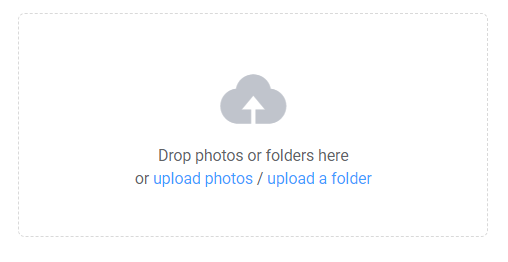 |
| The images will upload, labelled as "new person." When the upload is complete, return to the portrait manager. | 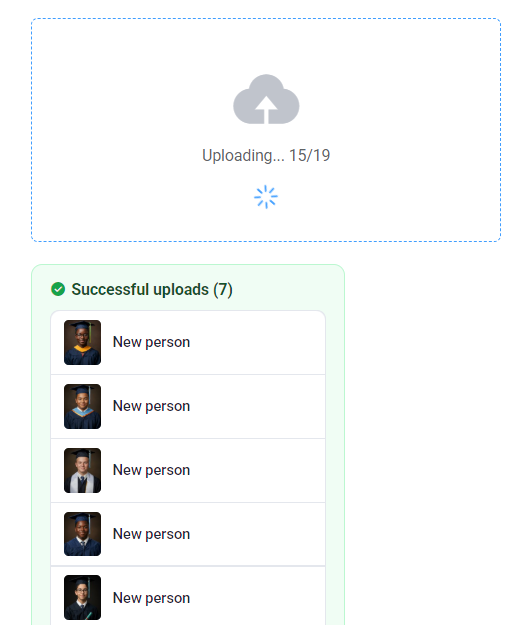 |
| The photos will appear with "missing" name info and have no data describing them. | 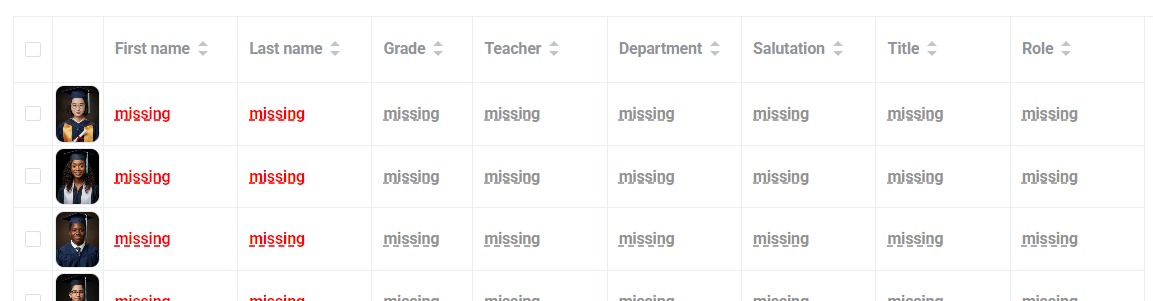 |
| Add the person's first and last name, assign them to a grade, and if applicable, a teacher group. Names must be added invidually, but grade and teacher may be added to multiple portraits at once. | 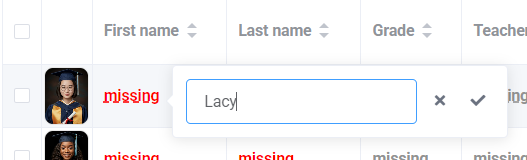 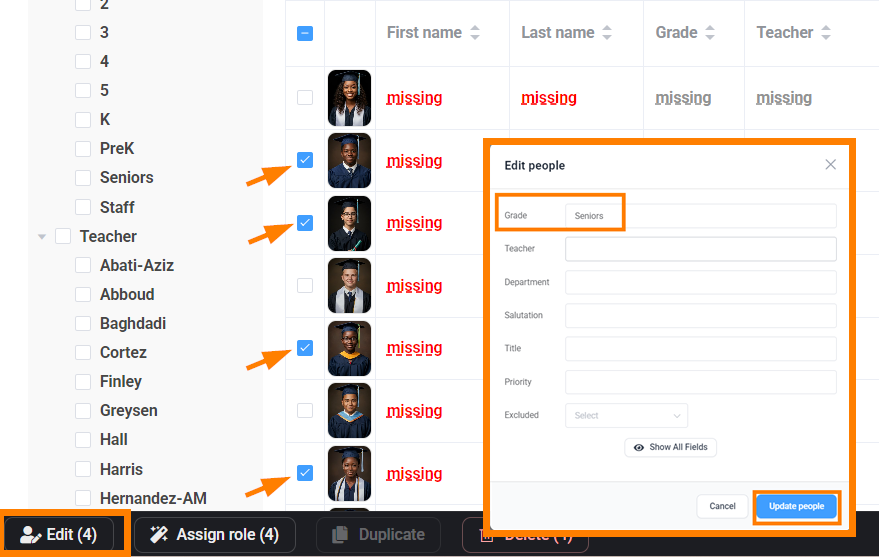 |
Adding a single person
| If a single person needs to be added to the portrait manager, click on NEW at the top fo the page. Create a record for the new person, adding their name, grade, and if applicable, their teacher. | 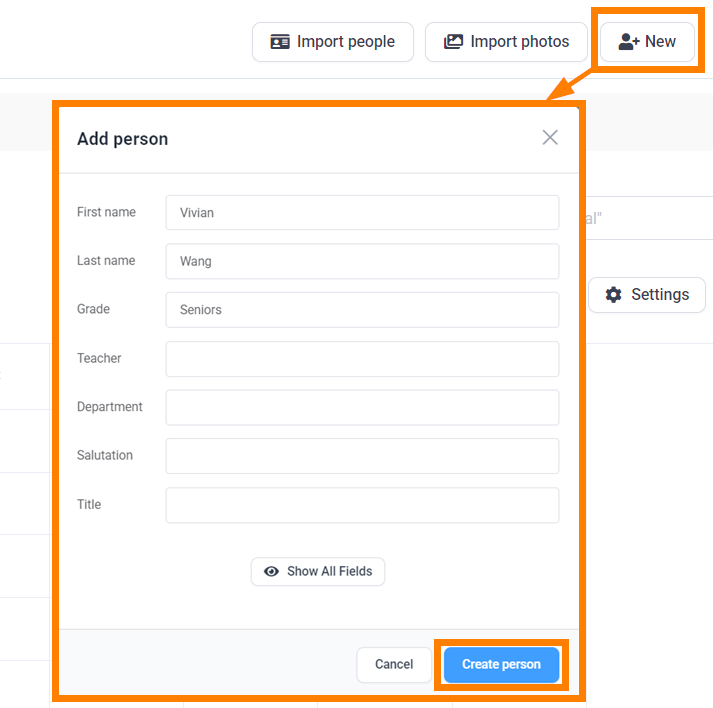 |
| The new person will import without a photo. Locate them in the portrait manager, click on their portrait photo, then upload the image. | 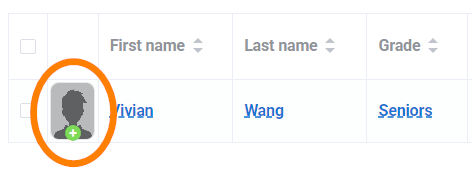 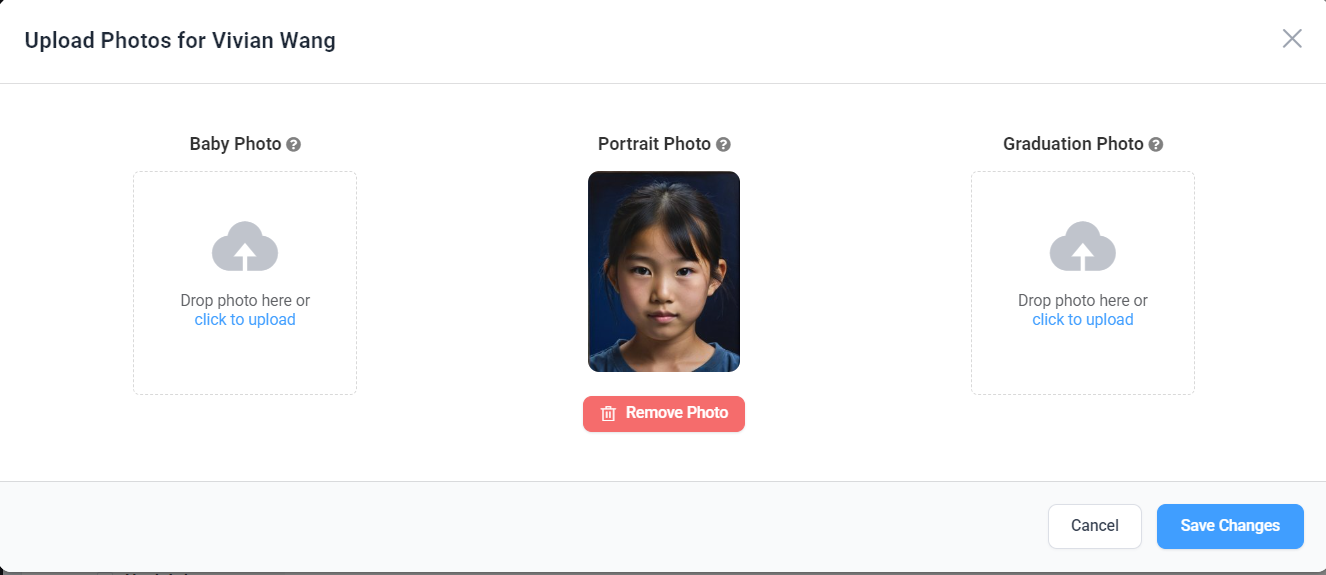 |
Was this article helpful?
That’s Great!
Thank you for your feedback
Sorry! We couldn't be helpful
Thank you for your feedback
Feedback sent
We appreciate your effort and will try to fix the article