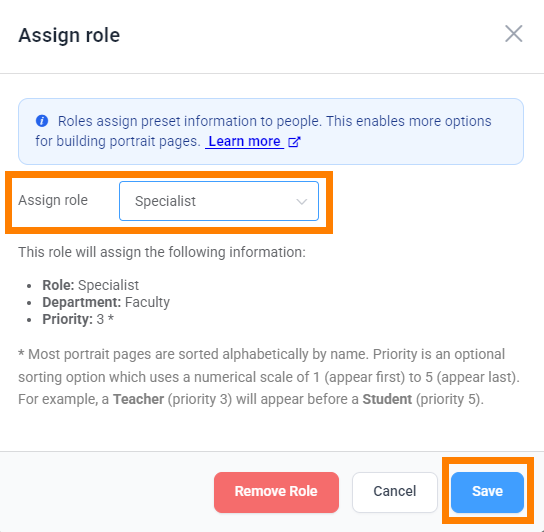
Roles auto-assign several attributes to a selected portrait:
- Job role to identify their position in the school
- Department to group staff into work groups. This information may be used to flow the staff page in smaller groups. For example, office staff, specialist teachers and support staff may appear grouped together.
- Priority breaks alphabetical order. A staff member with the priority of 1 will rise to the top of their portrait page. A staff member with the priority of 4 will appear after staff with the priority of 1-3. Portraits with no assigned priority will appear after portraits with a priority; for this reason, students are usually not assigned a priority.
By adding a role to staff portrait, it becomes easier to use presets to feature staff on portrait pages -- senior admins at the top of the staff page, teachers and assistant teachers at the top of their classroom pages.
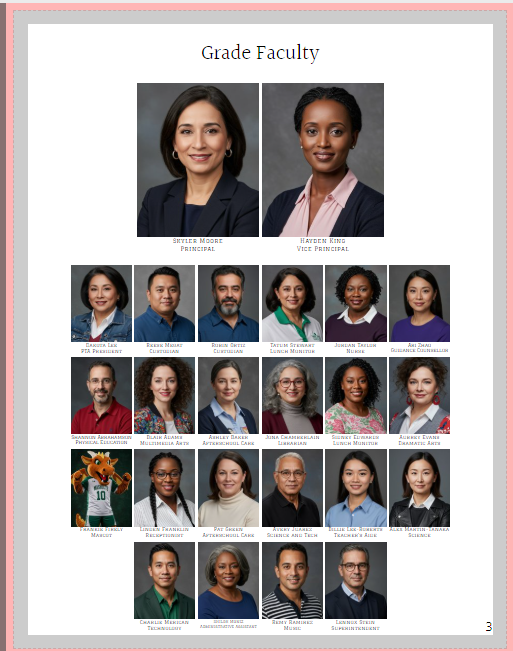 | 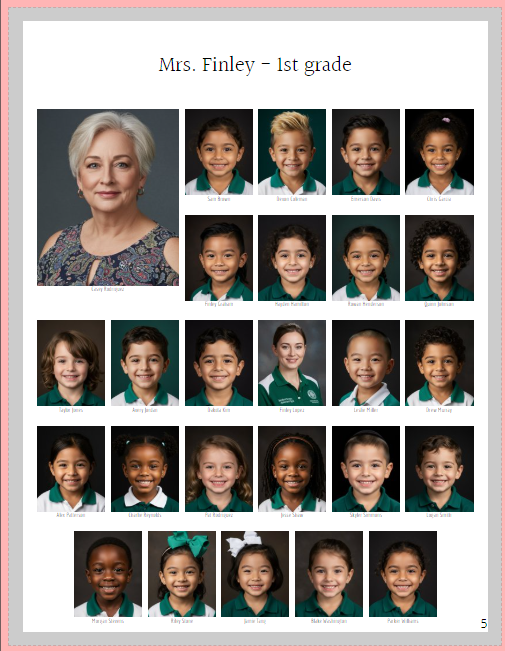 |
Roles are preset with the following values. You may edit the department and priority information after applying it (e.g. assign assistant teachers to a priority of 3 so they will be mixed in with the teachers, office staff, and specialists on the staff page).
| Role | Department | Priority | Examples |
| Principal | Admin | 1 | Principals, superintendents |
| Vice Principal | Admin | 2 | Vice principals or equivalent |
| Office Staff | Admin | 3 | Secretaries, administrative assistants |
| Teacher | Faculty | 3 | Homeroom teachers |
| Assistant Teacher | Faculty | 4 | Assistant teachers, teachers aides, student teachers |
| Specialist | Faculty | 3 | Music, phys ed, science, art specialist teachers |
| Support Staff | Support | 4 | Custodial, cafeteria, library, after-school care, guidance |
| Student | Student | 5 | Students |
IMPORTANT: If a staff member need to be on two portrait pages in a different position, duplicate their record and assign each copy to a different group. For example, one copy of a homeroom teacher portrait may be assigned to the Grade: Staff with no role or priority assigned to them and the second copy assigned to their class' Grade and Teacher with the role of Teacher. The teacher will appear alphabetically by last name on the staff page and in a featured role at the top of their classroom page.
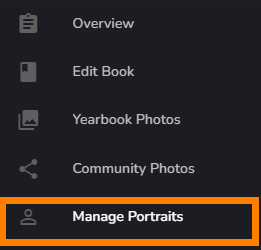
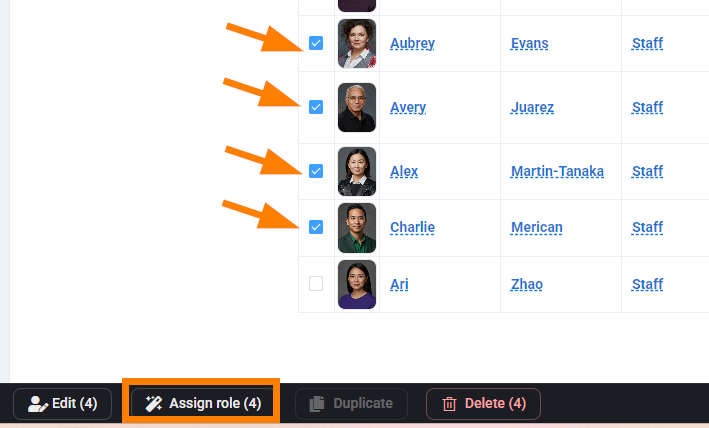
How to assign a role to a staff member
|  |
|  |
|  |
Staff portraits may also include salutations (Mr., Ms, Mrs., Dr.) and job titles. Learn how to add salutations and job titles in the portrait manager or review this short video clip.
Was this article helpful?
That’s Great!
Thank you for your feedback
Sorry! We couldn't be helpful
Thank you for your feedback
Feedback sent
We appreciate your effort and will try to fix the article