Updating Portrait Info and Images

Created by Memento Support, Modified on Mon, 31 Aug at 8:35 PM by Lynne Darroch

All information associated to portrait records is editable. Any changes made to the portraits in the portrait manager will automatically update portrait pages.


Special portrait features for staff and senior class pages are covered in separate articles in this knowledge base.


Fixing name typosDuplicating a portrait
Reassigning an individual to a new groupReassigning multiple people to a new group
Replacing a photoAdding additional photos
Adding job titles and salutationsAdding memories & quotes text
Excluding a PortraitDeleting a portrait


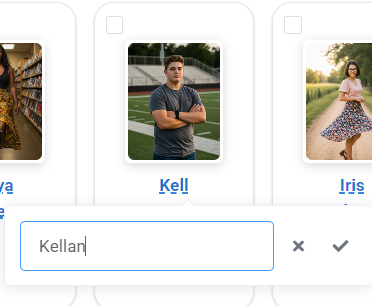
Fixing name typos


  • In table or grid view, click into the name directly on the portrait table.
  • Replace the data and save the changes.

Duplicating a portrait

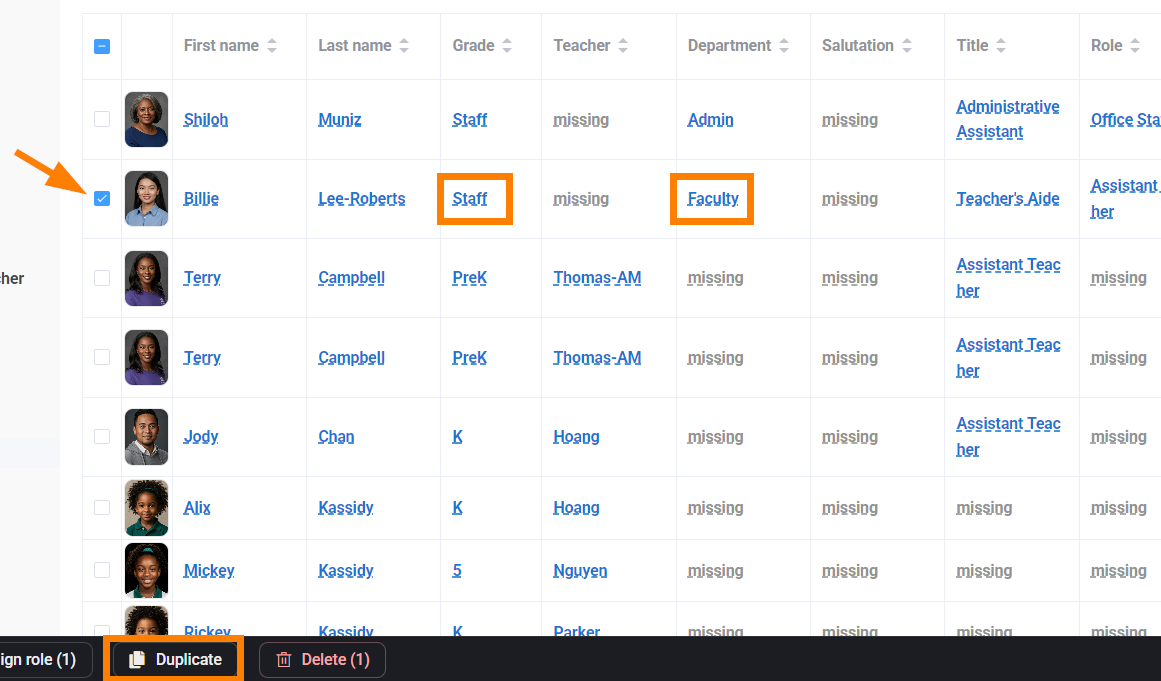
If a portrait needs to be assigned to more than one page/flow, duplicate the portrait so it may be assigned to different groups.

For example, if a staff member needs to be on the Staff page and their own classroom page, or an assistant teacher assigned to two classes.
  • In table or grid view, select the portrait.
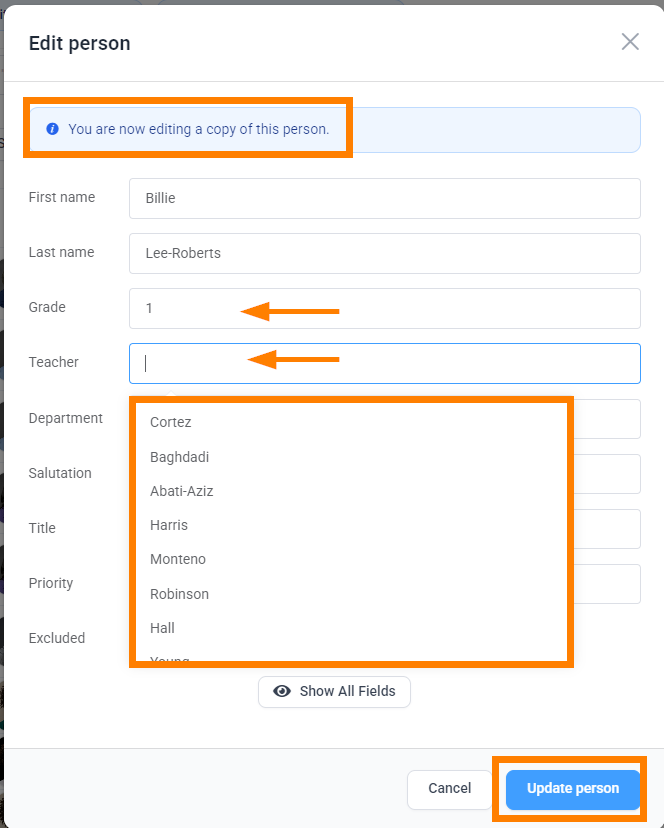
  • Click Duplicate at the bottom of the portrait table
  • Change the group assignment of the portrait copy.


Learn about special features for staff roles, departments and priorities.

Reassigning an individual to a new group


  • In table view, click onto the group.
  • Type the new group name.
  • Choose the new group (or create a new group by typing into the search box).
  • Apply the changes.


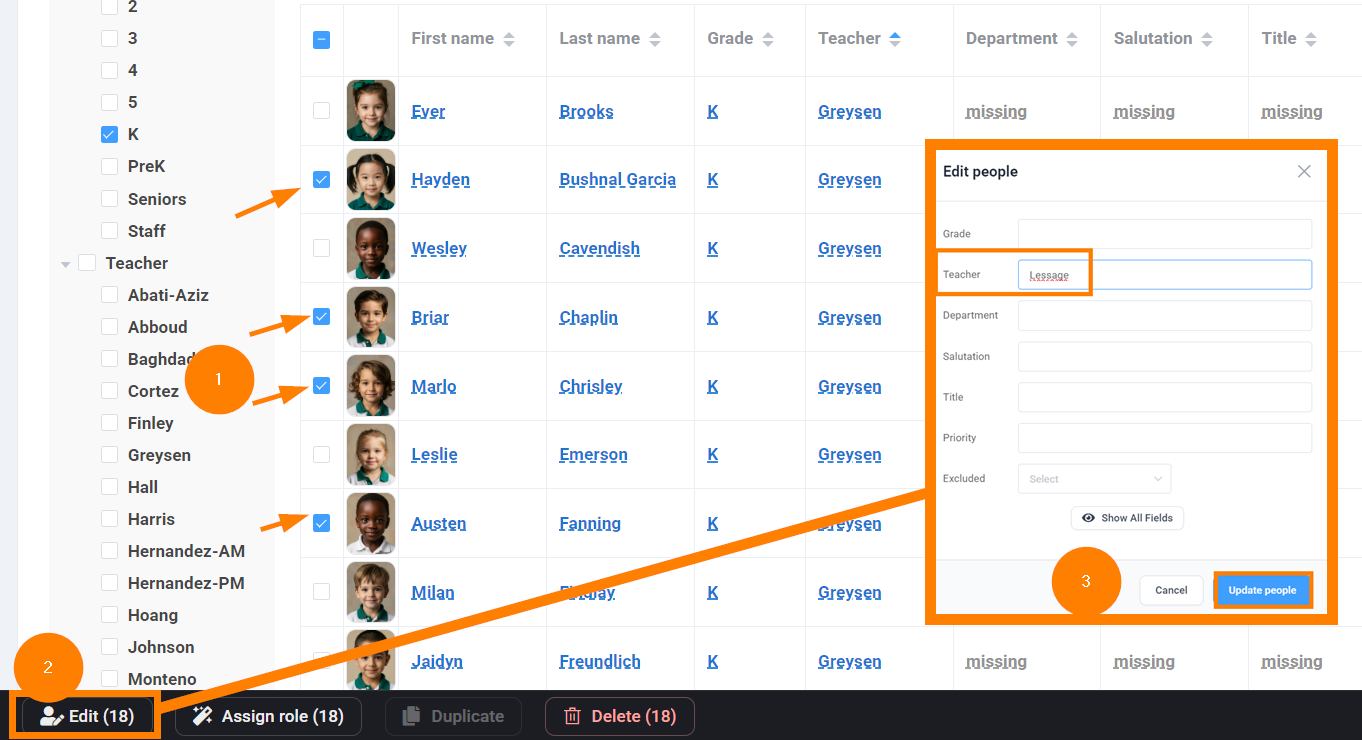
Reassigning multiple people to a new group


In table or grid view, select two or more people.
  • Click on Edit.
  • In the Edit people window, change the group information as required.
  • Save the changes. All people will be updated simultaneously.
(Note that if you are filtering to show the original group only, the records will disappear from preview.

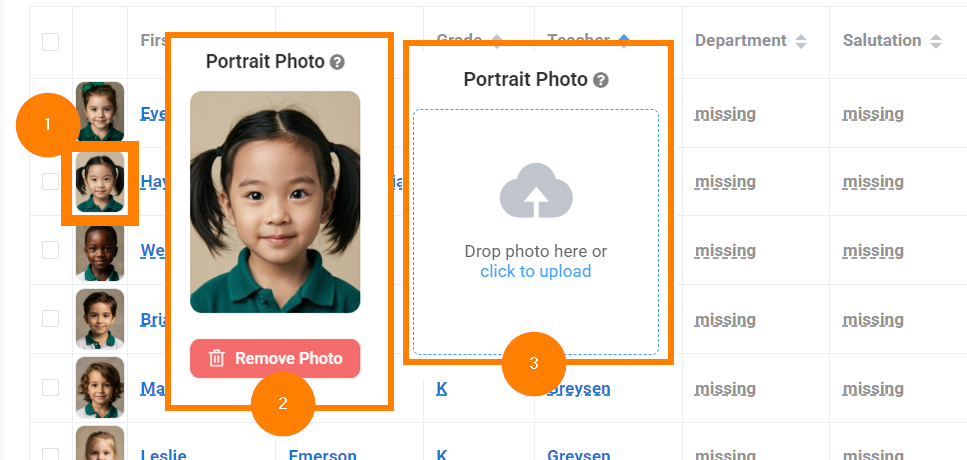
Replacing a photo


  • In table or grid view, click on a photo.
  • Remove the original photo.
  • Upload the replacement photo.


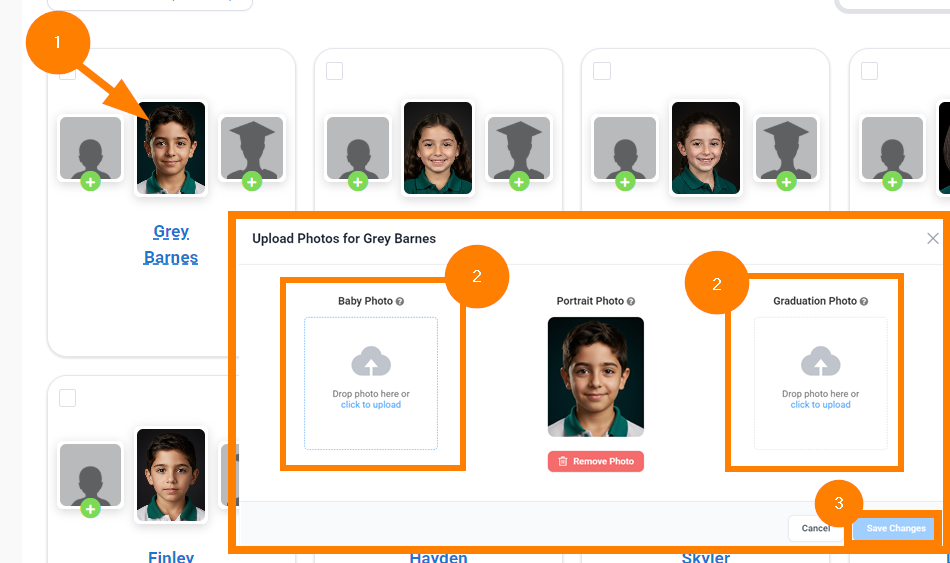
Adding additional photos

  • In table or grid view, click on a photo.
  • Upload a second photo. Use either the Baby or Grad photo options. 
  • Save the changes.

This feature is intended to provide alternative portrait flows in your book. Portrait templates are available to show "before and after" alternative images, or create two separate flows from a single record (eg. a baby photo page and a standard portrait page.)

Adding job titles and salutations


  • In table view, click into the cell under the Salutation or Title field. 
  • Type the salutation (Mrs., Mr. Ms, Dr, etc.) or job title.

This information can be used in the label filed on the portrait page.


Note that if multiple people have the same salutation or job title, you may multiselect people, click Edit, and add the information to all records at once.


Adding memories & quotes text

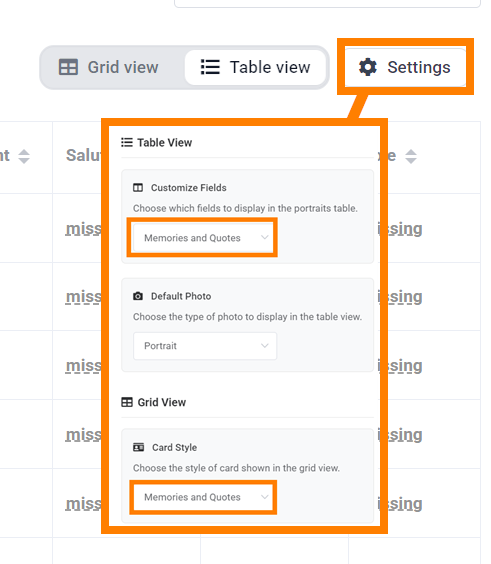
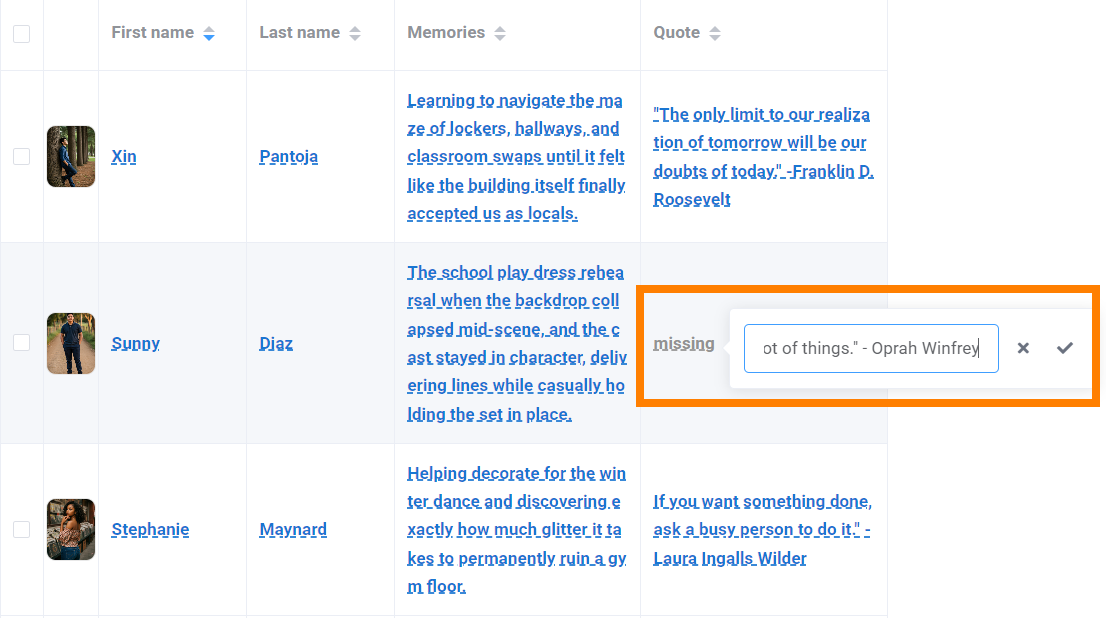
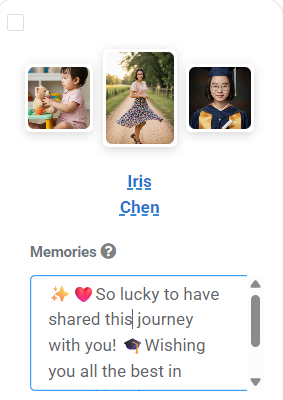
  • In table or grid view (Memories and Quotes setting), click on the Memories or Quotes cell.
  • Type or copy/paste the student's words.
  • Save the changes.
The portrait editor includes special templates designed to display senior memories and quotes.


Excluding a Portrait

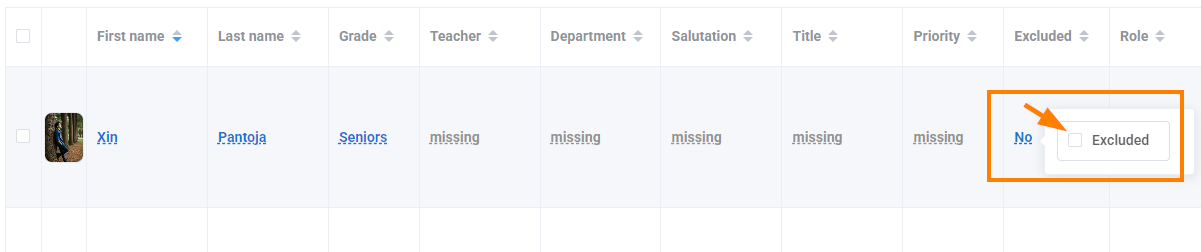
A portrait will not flow onto a page if it is excluded. Use this option if there is any chance the portrait may be needed in the book again.
  • In table view (Show All Fields mode),
  • Click into the Exclude cell to change it to "yes"

    OR

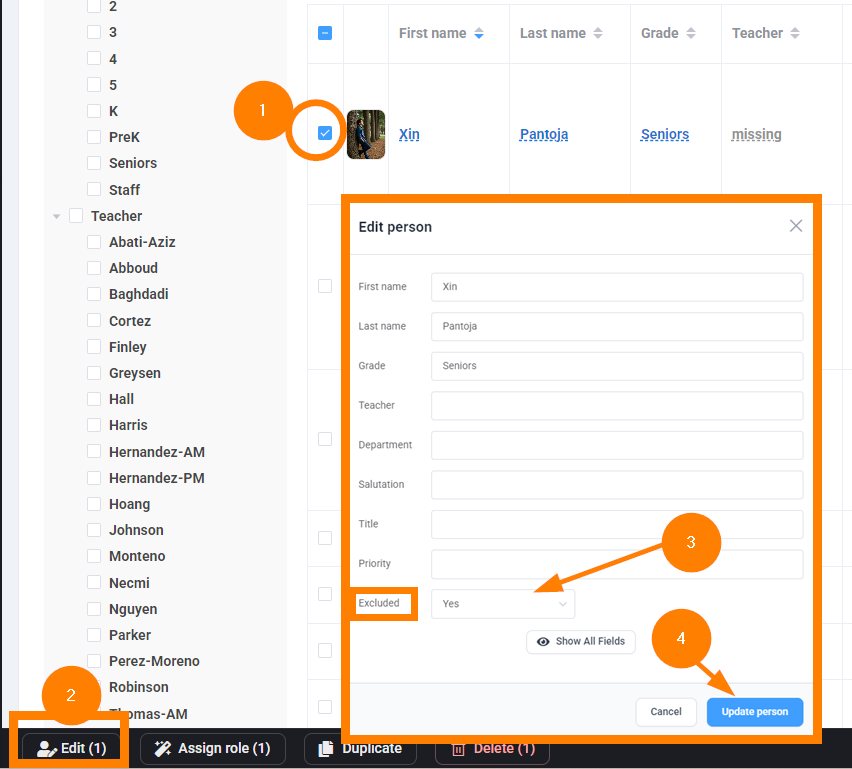
  • In grid or table view, select the portrait (checkmark)
  • Click Edit.
  • Change Exclude to "yes"
  • Update the person.


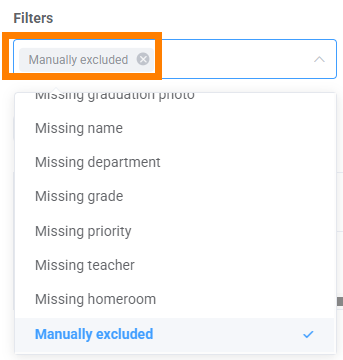
Locate excluded image using the Filters at the top of the portrait table.


Deleting a portrait


Portrait deletion is permanent so be cautious!
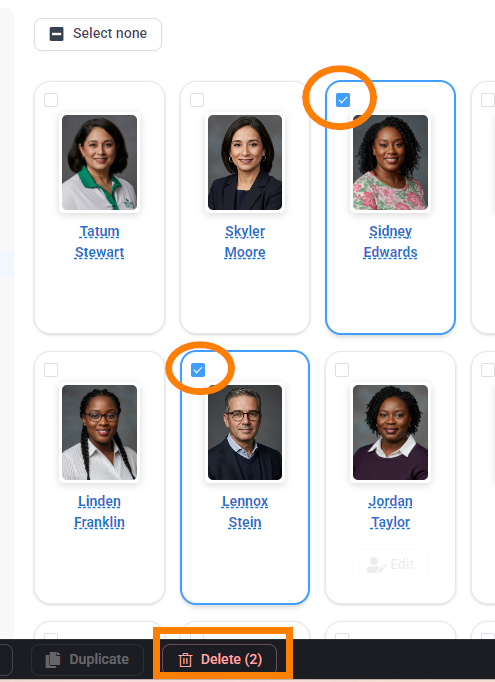
  • Select one or more portraits.
  • Click Delete at the bottom of the portrait table.
  • Confirm the deletion.


Was this article helpful?

That’s Great!

Thank you for your feedback

Sorry! We couldn't be helpful

Thank you for your feedback

Let us know how can we improve this article!

Select at least one of the reasons
CAPTCHA verification is required.

Feedback sent

We appreciate your effort and will try to fix the article